
Learn about the header and footer zones on your event website and how to edit them.
Every event website page has three zones: a Header zone at the top, a Footer zone at the bottom, and the main page content area in between. The header and footer zones are visible on every page of your site.
In the Website Editor, each zone is identified by a labeled dark grey bar on the right side of the page and dashed divider lines separating the zones from the main content area.
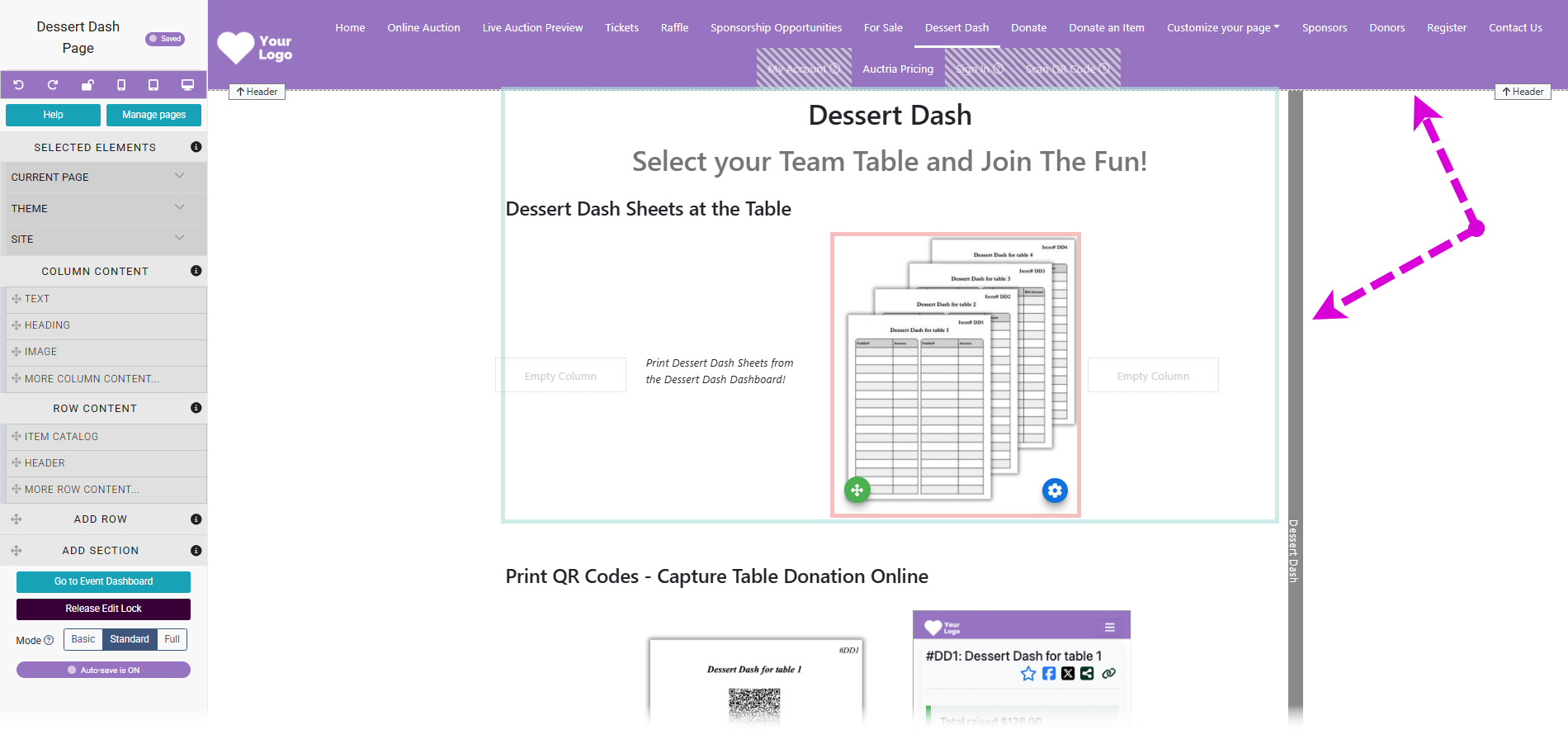
An example of the Header and zone separators in the Website Editor.
Changes affect all pages
When editing the Header or Footer zone, you are making changes that will appear on every page of your site. A red banner at the top of the Website Editor Sidebar indicates when you are editing a shared zone.
Header Zone
The Header zone is always at the top of the page. It typically contains a Header element, which provides the site navigation bar and menu entries.

An example header zone in the Website Editor.
The Header zone cannot be removed, but it can be left blank or hidden on individual pages. To hide the header on a specific page, see Hide Header.
Removing navigation from the header
If the Header element is removed or left empty, guests will lose the ability to navigate between pages on your site. Make sure the header always contains a Header element with menu entries unless you are intentionally creating a single-page experience.
You can also add other content elements to the Header zone. For example, an Image element in the header lets you display your organization's logo or event banner across every page. A Text Element element could display a mission statement or important event-wide announcement.
Configuring menu entries
To manage the navigation links that appear in the Header element, see Configuring Menu Entries.
Footer Zone
The Footer zone is always at the bottom of the page. It typically contains a Footer element, which displays your organization's contact details and share event links by default.

An example footer zone in the Website Editor.
The Footer zone cannot be removed, but it can be left blank or hidden on individual pages. To hide the footer on a specific page, see Hide Footer.
You can also customize the Footer zone with additional content. For example, a Text Element element can display event terms and conditions consistently across all pages, or a Countdown element can show a countdown to the close of online bidding on every page.