
Learn about the Site Settings options available in the Website Editor sidebar.
The Site settings apply to your event website globally, affecting all pages. To open Site Settings, click Site in the Website Editor Sidebar.
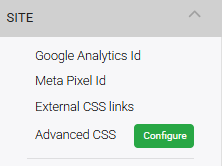
An example from a demonstration event.
Google Analytics ID
Enter your Google Analytics tracking ID to enable visitor tracking on your event website. Once added, Google Analytics will collect data on how visitors navigate and interact with your site.
Auctria visitor tracking
Auctria also provides built-in website analytics. See How To Track Visitors for more information.
Meta Pixel ID
Enter your Meta Pixel ID to enable Meta (Facebook) conversion tracking on your event website.
External CSS Links
This field accepts a publicly available stylesheet URL. Use it to load an external stylesheet — for example, to include an Adobe licensed font from your organization's existing website.
Advanced CSS
Clicking the Configure button opens a global stylesheet editor where you can write custom CSS that applies across all pages of your event website.
See Introduction To Advanced Styling for more information on using the CSS editor.