
An overview of the communication a purchaser can expect when buying tickets.
When guests purchase tickets for your event, Auctria automatically sends confirmation and ticket emails. The specific emails sent depend on how the ticket was purchased and the ticket details.
Ticket Emails at a Glance
Tickets can be purchased in two ways:
- Website purchase: Guests buy tickets directly from your event website.
- Dashboard sale: You sell tickets to guests using the Auctria dashboard.
| Purchase method | Emails sent | Sent to |
|---|---|---|
| Website purchase | Online Registration/Purchase Receipt | The purchaser. |
| E-Ticket | The purchaser (if they assigned a ticket to themselves) and any guests whose email addresses were included at checkout. | |
| Dashboard sale | Ticket Statement (optional) | The purchaser. |
| E-Ticket | Guests, once their details have been added. |
Website Purchase Emails
When guests purchase tickets through your event website, they receive the following emails.
Online Registration/Purchase Receipt
This email is sent automatically after completing a website purchase. It includes:
- A link to confirm their email address.
- A participant access link.
- A Manage Tickets button to update guest details.
- Purchase details and payment information.
Statement Sent Instead
This email is only sent if the purchaser is not also paying a balance or purchasing a For Sale item at the same time. If they are, the Statement email is sent instead.
E-Ticket Emails
Depending on ticket assignments, additional E-Ticket emails may be sent:
- Personal E-Ticket: If the purchaser assigned a ticket to themselves (either a single ticket or one from a multi-ticket purchase), they receive an E-Ticket email with their ticket information.
- Guest E-Tickets: If the purchaser included guest email addresses during checkout, those guests also receive individual E-Ticket emails.
Each E-Ticket email contains:
- Ticket number.
- Link to the event.
- Guest details (if provided).
- Update Details button for the guest to modify their information or register a credit card (if credit card integration is enabled).
- Access code.
No Texts or Mobile Notifications
Website purchases do not trigger automatic text messages or mobile app notifications.
Dashboard Sale Emails
When you sell tickets through the Auctria dashboard, you have the option to send a Ticket Statement email to the purchaser. For more information, see How To Sell Tickets.
Ticket Statement
This email contains:
- Ticket details, including ticket numbers.
- A Manage Tickets button for adding or updating guest information.
- Purchase information.
The Ticket Statement is only sent when you choose to send it during a dashboard ticket sale, or when you trigger it manually later.
Send Statements to Purchasers for Guest E-Tickets
Many organizations resend this email several weeks before the event to remind purchasers to add their guests' names and email addresses. Once guest details are added, those guests automatically receive individual E-Ticket emails.
Resending Emails
You can resend ticket-related emails at any time from the Auctria dashboard:
- From the main dashboard, click Communication → System Emails.
- Find the email type you want to send.
- Click the Trigger link next to the email name.
- Select recipients using the participant filter.
You can send to individual guests, or use filters to select multiple recipients at once. See Choose Participants Filters for more information about selecting recipients.
Remind Guests Before the Event
Many organizations resend E-Tickets closer to the event date as a courtesy reminder to guests.
Email Configuration
All ticket-related emails can be customized before they are sent. To configure these emails, see:
Samples
Sample Online Registration/Purchase Receipt Email
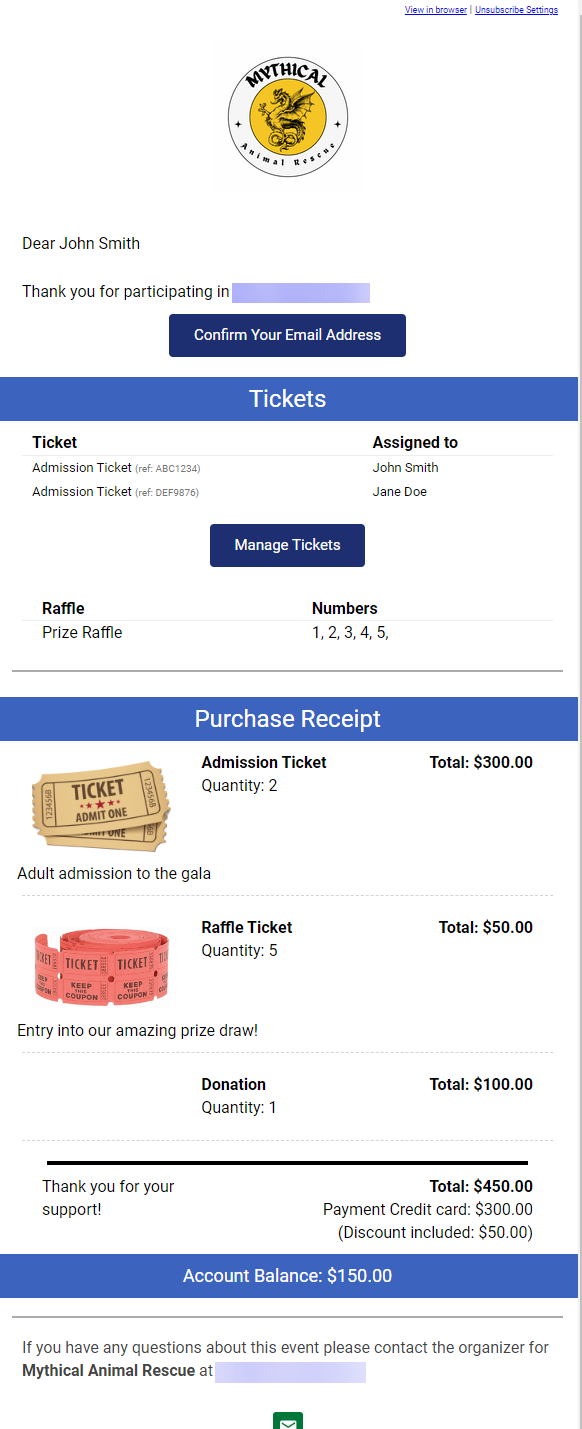
A preview of the Online Registration/Purchase Receipt system email.
Sample E-Ticket
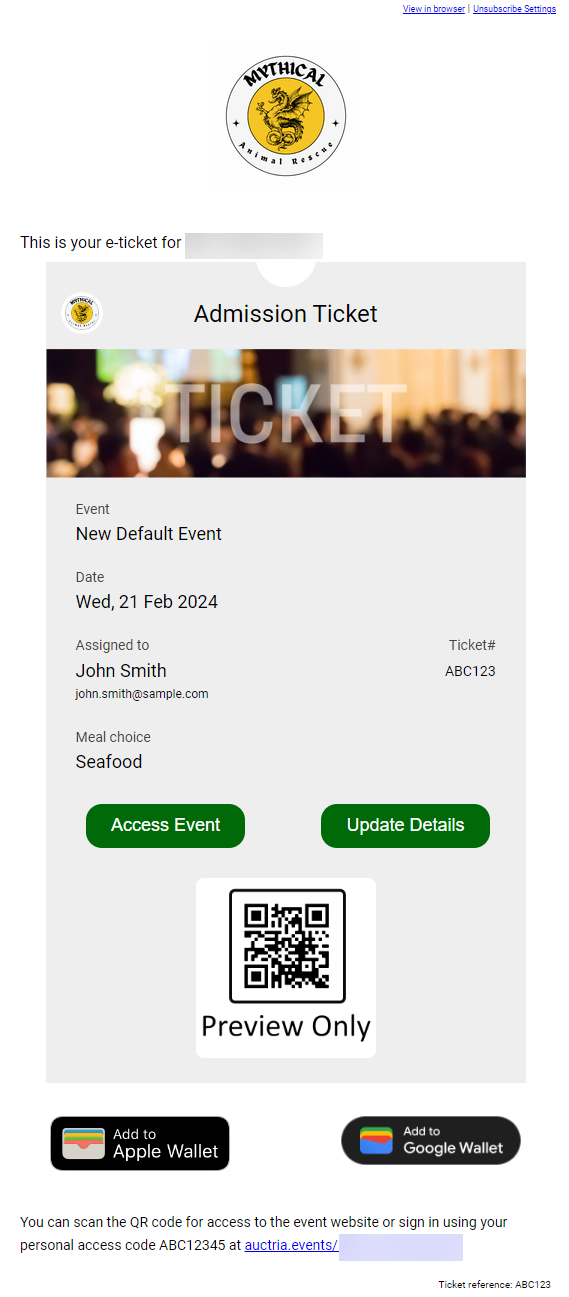
A sample E-Ticket email from a demonstration event.
Sample Ticket Statement
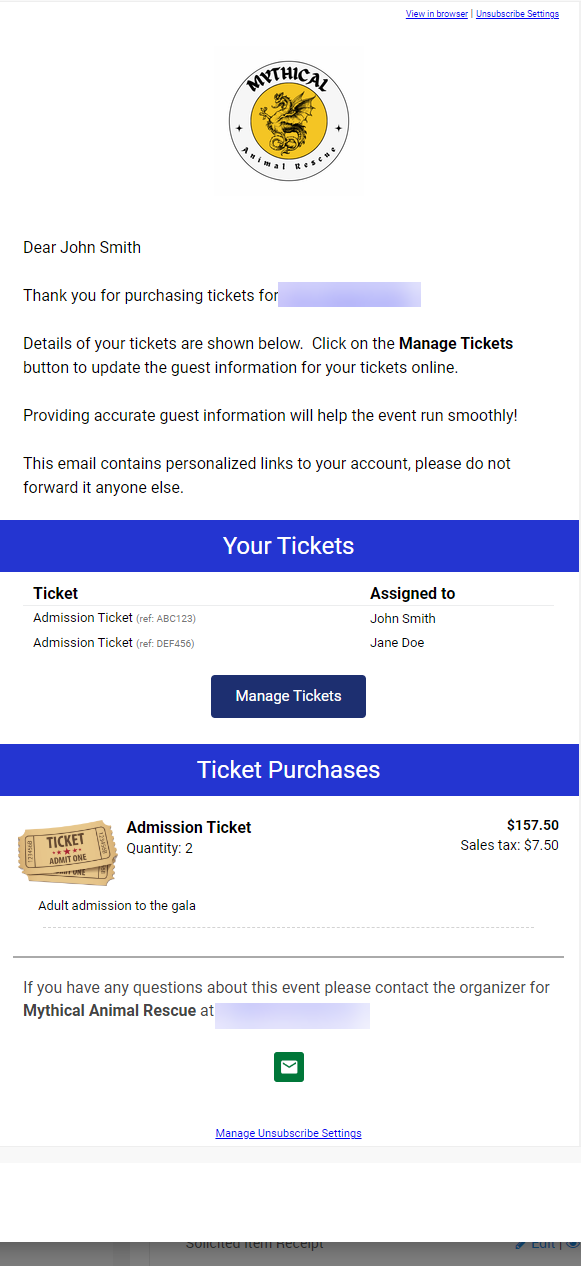
A sample Ticket Statement email from a demonstration event.