
Learn how to use Auctria's Raffles feature to run raffles during your event fundraiser.
Once your raffle is created and tickets are set up, it's time to run your raffle. This includes selling tickets, awarding prizes, and choosing the raffle style that works best for your event.
Raffle Ticket Sales
There are a few different ways to sell your raffle tickets:
- Through the Auctria Raffles Dashboard
- Through the Auctria Admin App
- Through paper ticket sales
Avoid mixing sales methods
We don't recommend combining paper and digital ticket sales for the same raffle item.
Through the Dashboard
Sell raffle tickets directly from the Raffles dashboard by clicking Raffles → Sell Raffle Tickets.
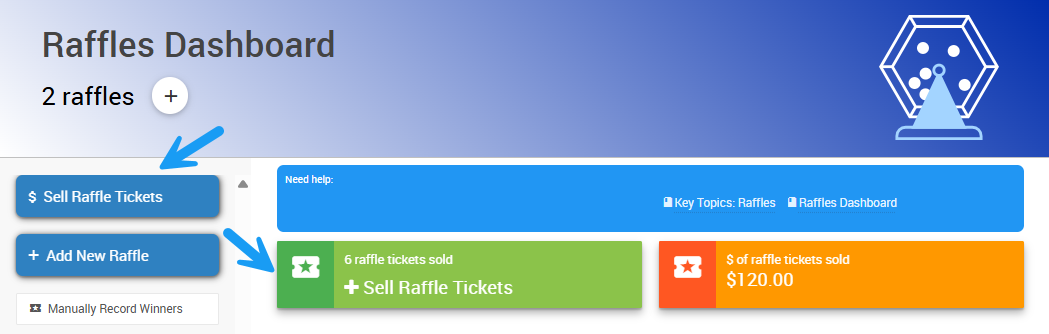
An example from a demonstration event.
This opens the Record Raffle Ticket Sales page, where you can choose the ticket, choose the purchaser, select the payment method, and record the sale.
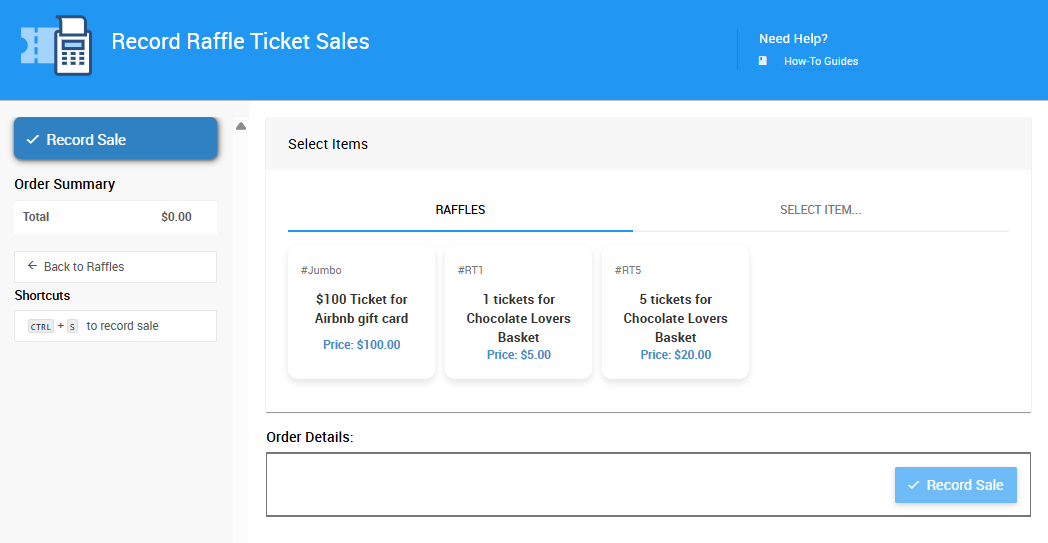
An example from a demonstration event.
This option is great for digital events, if you want to track each purchase in real time, or for in-person events if you have a sales desk.
See Sales Dashboard for more details about sales in Auctria.
Through the Admin App
The Auctria Admin App allows volunteers to quickly sell tickets onsite using their smartphones. Tap Sales → Raffle Tickets in the Admin App.
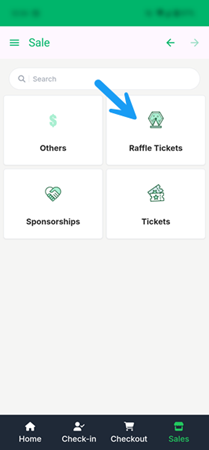
An example from a demonstration event.
This opens the Record Raffle Tickets page, where you can add tickets to the cart, select the purchaser, and process the payment or add the charge to the purchaser's account.
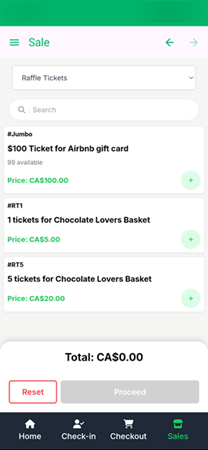
An example from a demonstration event.
This option is well suited to in-person events with multiple points of sale.
See Admin App Sales for more information.
Paper Tickets
Selling physical tickets? Create a general cash sale participant record and use it to record the purchases and track revenue.
Note that you won't be able to track individual ticket numbers unless all tickets are sold from a single point of sale.
Award Raffle Prizes
There are two ways to assign raffle winners in Auctria: automatically and manually.
Automatically
Use the Award Prizes feature to let the Auctria system randomly assign winners.
Requires tracked tickets
This method only works when all tickets are tracked in the system.
- Go to your Raffle.
- Click Award Prizes.
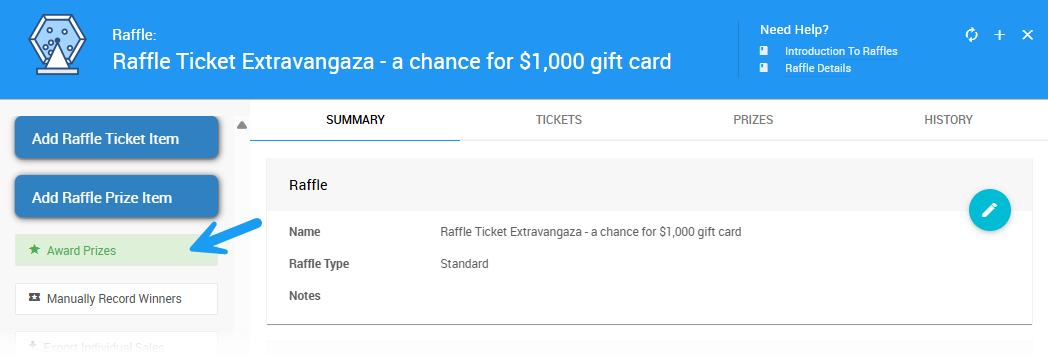
An example from a demonstration event.
- Select the prize(s) you wish to award.
- Type
yesin the text box and click Award to award the selected prize(s).
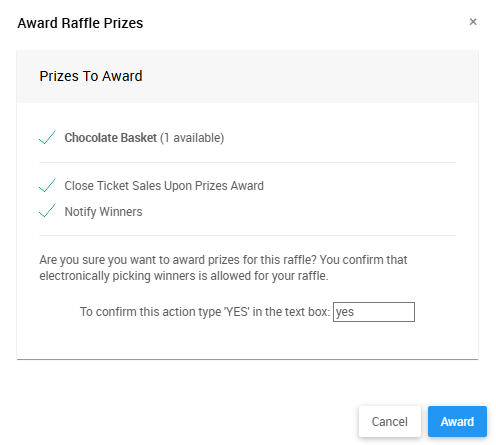
An example from a demonstration event.
Auctria randomly selects winners and updates the Prizes and History tabs of the associated raffle.
Manually
If you're using paper tickets, you can draw a winner yourself and manually record it in the system.
- Click Manually Record Winners on the Raffles dashboard.
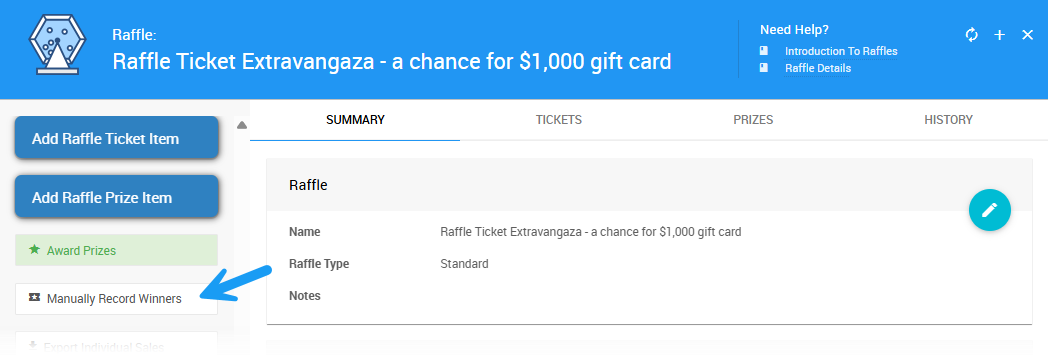
An example from a demonstration event.
- Search for the prize in the Item# dropdown and select it.
- Search for the participant in the Bidder dropdown and select them.
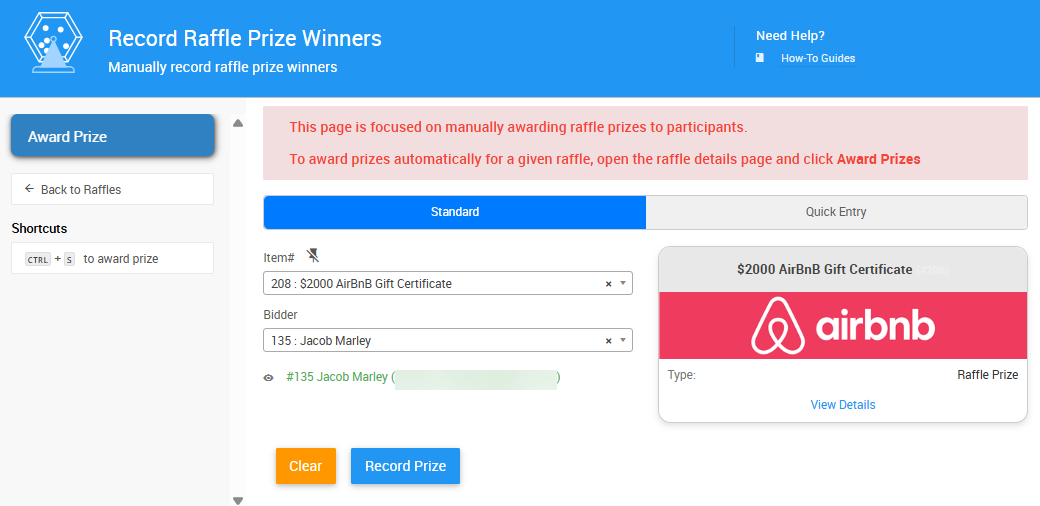
An example from a demonstration event.
- Click Record Prize or Award Prize to complete the award.
Raffle Types
Single Winner Raffle
This is the classic raffle: one prize, one winner. Great for 50/50s, trips, or high-value items. Works best with either the Award Prizes feature or manual draws.
Multiple Winner Raffle
A single raffle can have multiple prizes. Use the Award Prizes feature to draw all winners at once.
- Each prize is matched with a unique winner.
- Or assign winners manually using the Manually Record Winners button.
Multiple of the same prize?
If there are multiple of the same raffle prize available, make sure you have allow multiple winners enabled.
Golden Ticket
Guests buy a high-price ticket for a chance to win any auction item or premium prize. You'll typically:
- Sell a single ticket type.
- Manually draw the winner.
- Let them pick from a list of prizes.
Jumbo Raffle Tickets
A Jumbo Raffle Ticket is a higher-priced ticket for a high-value prize — a powerful way to boost event revenue with a limited number of sales.
These raffles often sell out fast. To set one up in Auctria, create a raffle with a higher-value ticket and prize item.
| Example | Sales | Net |
|---|---|---|
| $2,000 AirBnB gift certificate | $50 per ticket × 100 tickets = $5,000 | $3,000 net profit after the $2,000 prize cost |
| $500 Amazon gift card | $25 per ticket × 100 tickets = $2,500 | 100% profit if the prize is sponsored |
Running Multiple Raffles
You can run as many raffles as you'd like for your event. Each raffle can have its own ticket types and prize items.
- Organize raffles by name in the Raffles Dashboard.
- Award prizes per raffle, automatically or manually.
See Creating Raffles for more details.
Raffles Reports
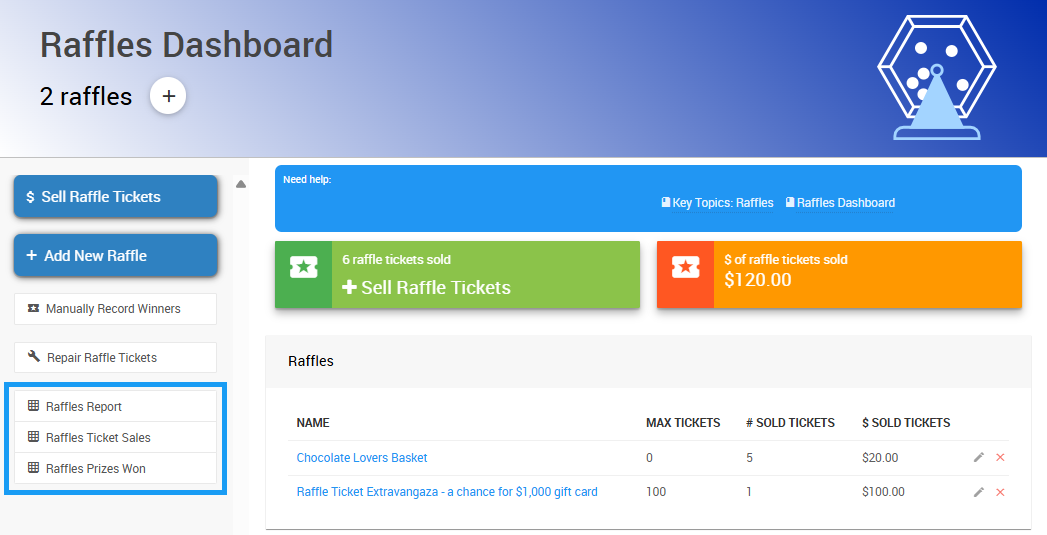
An example from a demonstration event.
There are three reports available from the Raffles dashboard:
| Report | Description |
|---|---|
| Raffles Report | Total revenue of raffle ticket sales from your event's raffle(s). |
| Raffles Ticket Sales | Individual ticket sales for your event's raffle(s). |
| Raffles Prizes Won | Raffle prizes that have been awarded, by raffle. |
Export Individual Sales
To export the sales data of an individual raffle, open its Raffle Details page and click Export Individual Sales.
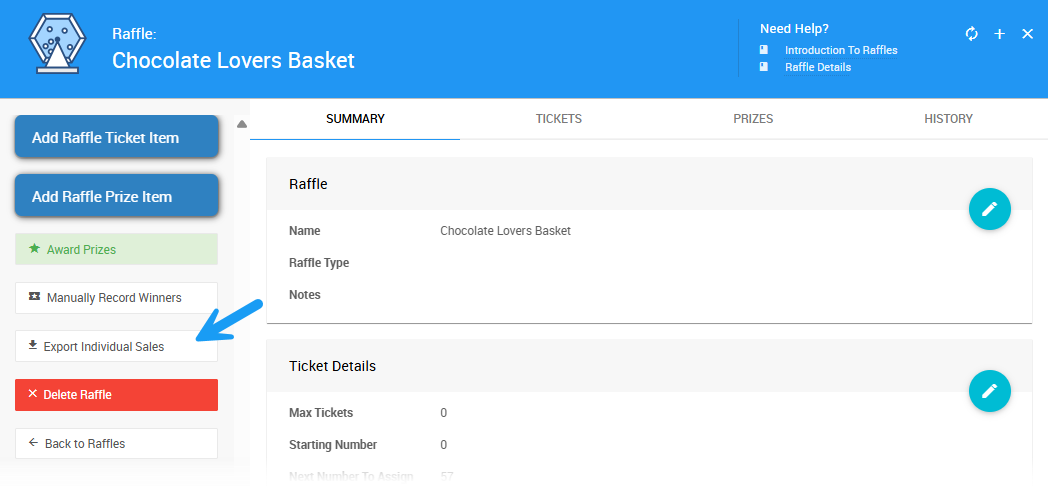
An example from a demonstration event.
This downloads an .XLS file of the raffle ticket sales for that particular raffle.