
This page will help you learn about displaying Sponsors on your Auctria Event Website.
Sponsors are the organizations or individuals supporting your event through sponsorship purchases. In Auctria, sponsors can be represented in two different ways:
- Sponsorship Items – The items you create and sell (e.g., "Gold Sponsorship")
- Sponsor Profiles – The participants who purchase those items
Both work together: the item defines the sponsorship level, and the participant record holds details about the sponsor, like their logo.
Adding a Sponsor Logo (Participant Profile)
If a sponsor has purchased a sponsorship, you'll want their logo to appear on your event site. Logos are added at the participant (sponsor) profile level.
Here's how:
- From the left sidebar, go to Participants.
- Search for and select the participant record that represents your sponsor.
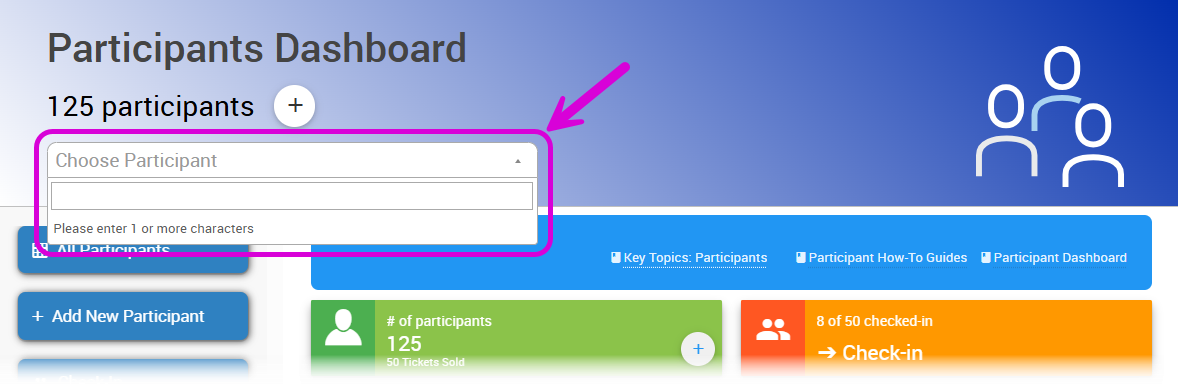
An example from a demonstration event.
- On the participant details page, click the Images tab.
- Click Upload New Image and select the logo file from your computer.
- Save your changes.
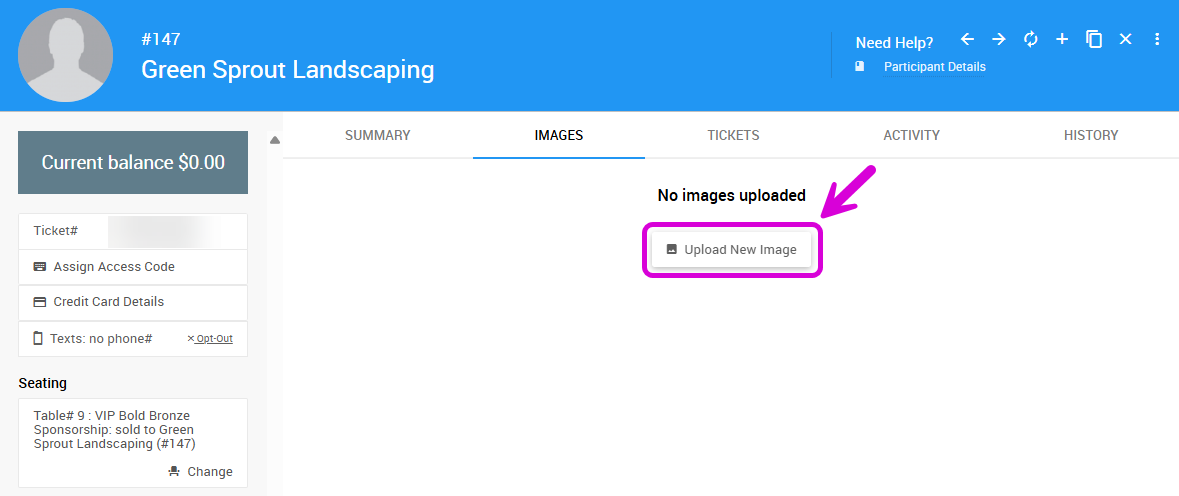
An example from a demonstration event.
The uploaded logo now displays wherever sponsors are shown on your site (Sponsors catalog/page, event site sections).
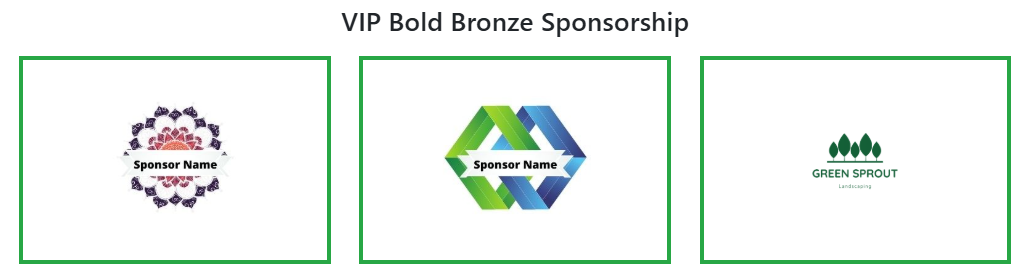
An example of a Sponsor logo on an event website from a demonstration event.
Upload Sponsor Logo From My Account Page (Event Website)
You can allow sponsors to upload their own logos after purchasing a Sponsorship item on your event website.
From Sponsorships on the left sidebar, click Sponsorship Item Settings.
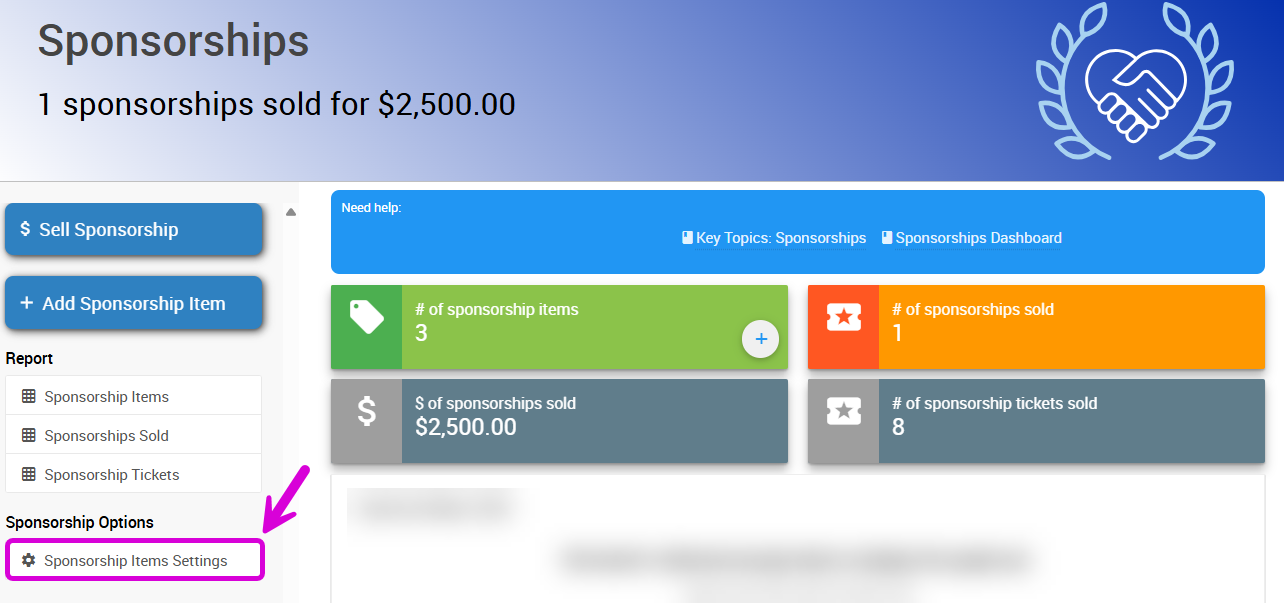
An example from a demonstration event.
Enable Allow participant to upload sponsor logo and save your changes.

An example from a demonstration event.
Once enabled, sponsors can upload their logo from the My Account page on the event website after completing their purchase.
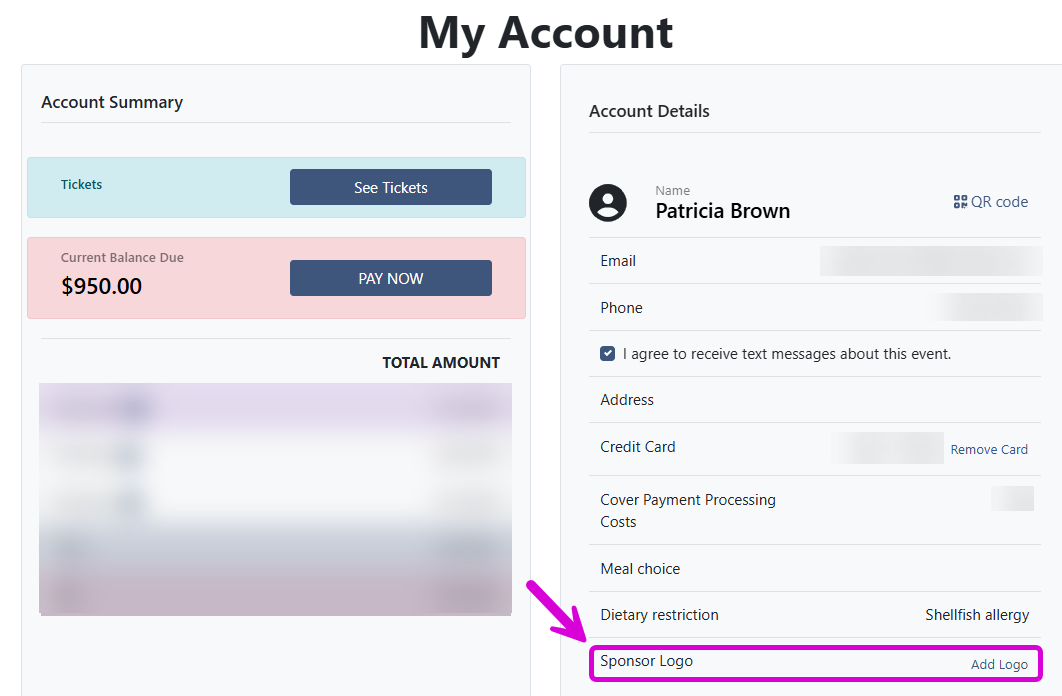
An example from a demonstration event.
Sponsor Logos
If the sponsor purchased multiple sponsorship items, the logo only needs to be uploaded once — it displays automatically for all linked items.
Sponsors on Your Website (Sponsorship Items)
Once you've added sponsorship items to your event, you can highlight your supporters on your event website.
If you're using an Auctria website template, properly configured sponsorship items automatically appear in two places:
- Sponsors catalog – A browsable list of all your sponsorship items
- Sponsors page – A visual layout that displays sponsor names and logos
No extra setup required — just make sure your sponsorship items include a sponsor name and are linked to the correct sponsor participant profile.
How to Make Sponsors Show Up (Items)
To appear on the website, each sponsorship item must:
- Have the Is sponsorship field set to Yes in the item's For Sale Options
- Be marked for display (toggle this when editing the item)
Creating Sponsorship Items
Sponsorship items can be created in just a few clicks. Head to Sponsorships → Add Sponsorship Item to create your new item, already configured.
See Add & Sell Sponsorships for more information.
You can preview how your sponsors will appear by navigating to your Sponsors catalog or Sponsors page.
Sponsors Not Displaying
Don't see them showing? Make sure your site is published and that both the item and participant logo are set correctly.
Customize the Page Content
While the catalog and page content update automatically based on your sponsorships, you can still customize:
- Intro text on the Sponsors page
- Section layout
- Page titles and colors
Head to Event Website → Edit Website, navigate to your Sponsors pages, and select the Sponsors section to adjust layout, colors, or visibility settings.