
Learn how to send notifications directly to participants who are using the Auctria Mobile Bidding App.
If you have participants using the Auctria Bidder Mobile App, you can send them direct notifications. Participants see these notifications pop up on their phones.
Admin Permission Required
To send mobile notifications, you must be logged in with a user account whose permission level is set to Admin.
Send a Mobile Notification
From the main Auction Dashboard, click Communication.
Click the Send Mobile Notification button.
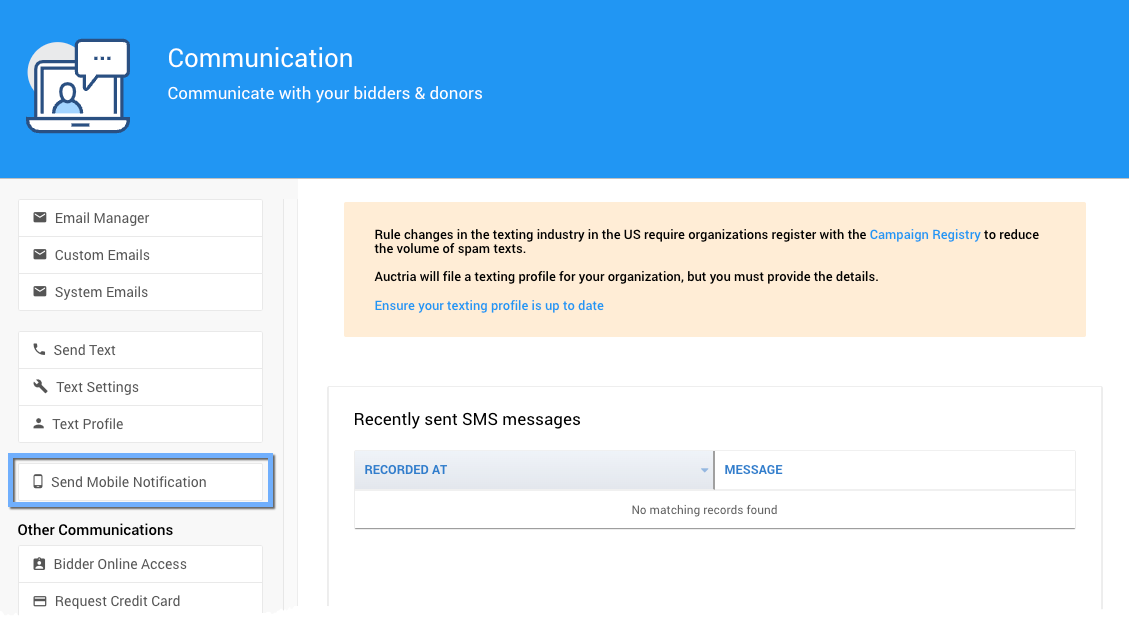
The Send Mobile Notification button on the Communication page.
Enter a title and a message for the notification.
Select the participants you want to send it to.
Click Send Notification in the Actions sidebar.
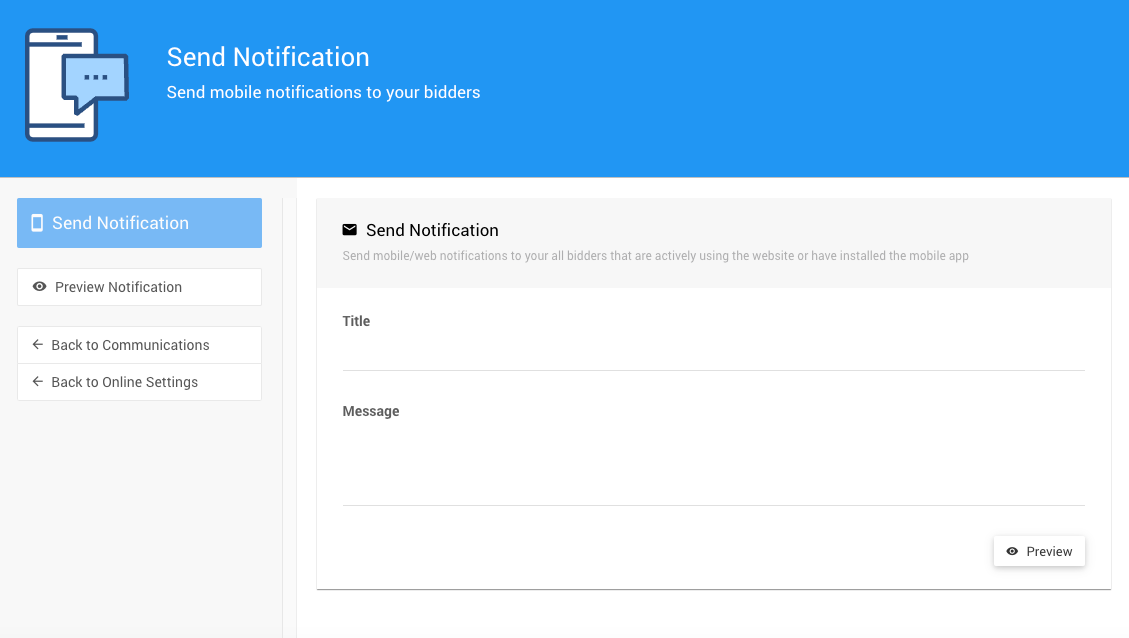
The Send Notification dashboard.
Who Receives Mobile Notifications
Only participants who have the Auctria Mobile Bidding App installed and have signed in to your event receive the notification.
What Participants See
Participants see the notification pop up on their phones.
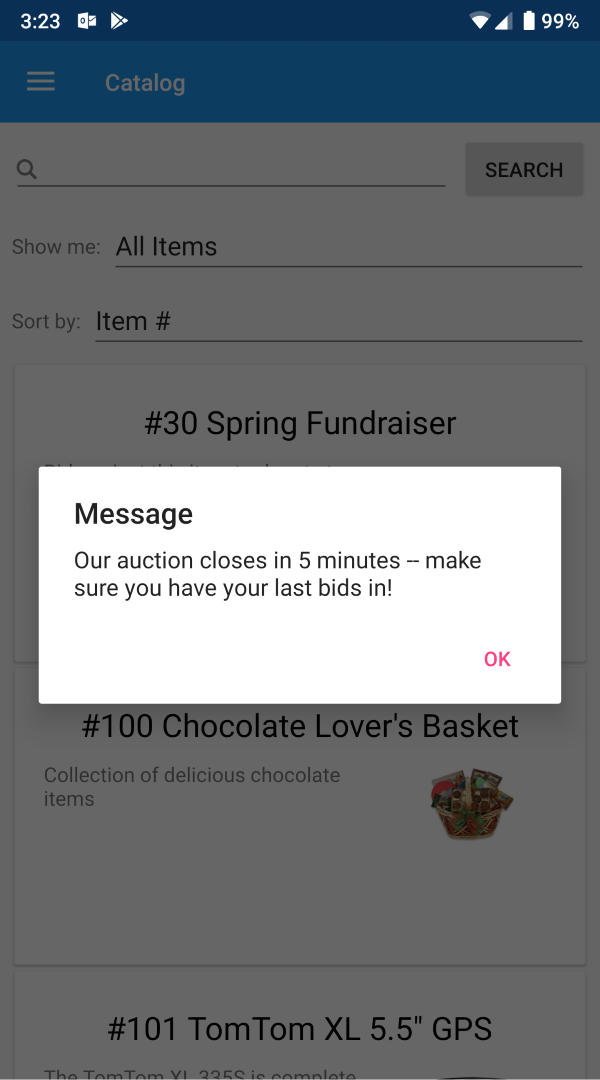
A mobile notification as it appears on a participant's phone.
Participants can also open the Messages page of the app to review the messages they have been sent.
For information about the automatic notifications the system sends, see System Notifications.