
Record Dessert Dash donations from your phone with the Auctria Admin App.
In a Dessert Dash, guests donate on behalf of their table. Use this screen to record each donation and add it to the right table.
No Payment Is Taken Here
Recording a donation doesn't charge the guest. The donation is added to their account, and they pay at checkout. See Admin App Checkout.
Before You Start
This section is for event administrators. Before event night, set up:
- Your tables, with guests assigned to them. See Tables And Seating.
- A Dessert Dash item for each table. Items are numbered
DDplus the table number. For example, table 5 uses itemDD5. See Dessert Dash Dashboard.
Steps
- Tap Record at the bottom of the screen.
- Tap the Donations tab.
- Tap Dessert Dash.
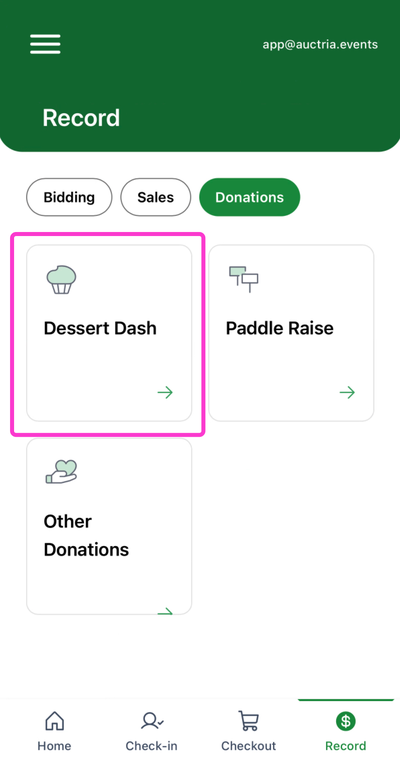
An example Donations tab from a demonstration event.
- Leave Table # set to Auto.
- Find the guest. Do one of the following:
- Type their name or Paddle# in Name/Paddle #, then tap them.
- Tap SCAN, then scan the QR code on their e-ticket or printed ticket.
- Enter the Amount.
- Tap Record Donation.
The donation appears under Recently recorded donations.
To clear the form and start over, tap Reset in the footer.
For more on scanning, see How To Scan QR Codes At Check-In.
How Auto Works
With Auto, the donation goes to the Dessert Dash item for the guest's assigned table. A guest at table 5 donates to item DD5.
If the guest isn't assigned to a table, you'll see Guest is not seated at a table. Choose the table yourself. See Choose a Table Manually.
Choose a Table Manually
Use this when the guest isn't seated at a table, or wants to donate to a different table.
- Tap Table #.
- Choose the table's Dessert Dash item from the list.
- Find the guest, enter the Amount, and tap Record Donation.

An example Table # dropdown from a demonstration event.
Add a Guest While Recording
Use this when the guest isn't on the list.
- Tap New Guest.
- In the Add New Purchaser form, enter the guest's Last name. Fill in any other details you have.
- If the form shows Meal Choice and the event requires it, choose one.
- Tap Save & Assign.
- Choose the guest's table from Table #.
- Enter the Amount, then tap Record Donation.
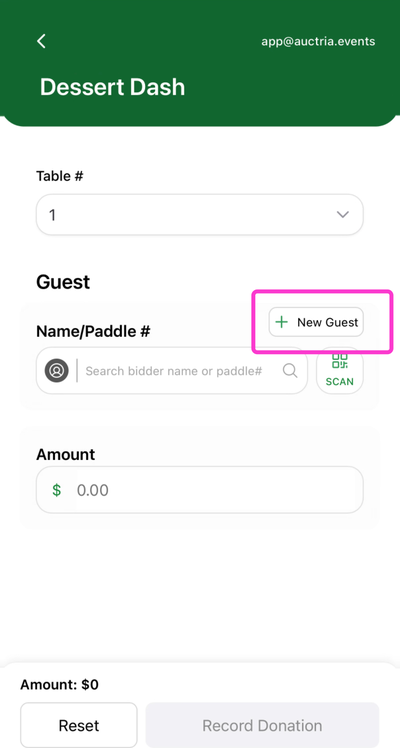
An example Add New Purchaser form from a demonstration event.
Auto Doesn't Work for New Guests
A new guest isn't assigned to a table, so Auto can't find one. Always choose the table from Table #.
The New Guest Isn't Saved Yet
The new guest is only created when you record the donation. If you leave the screen first, the guest isn't saved.
Undo a Donation
- Find the donation under Recently recorded donations.
- Tap the trash button on its row.
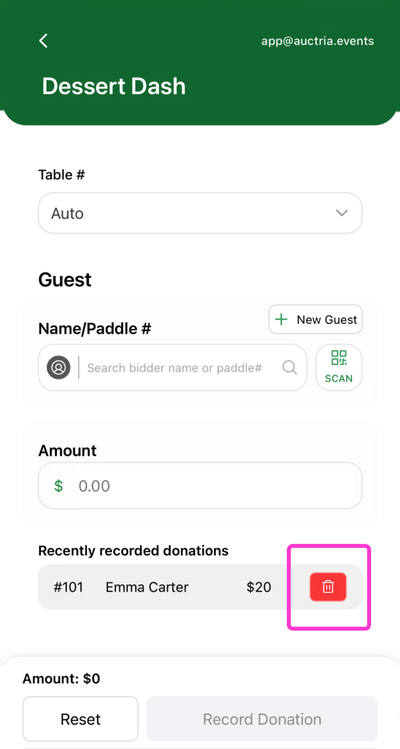
An example Recently Recorded Donations list from a demonstration event.
Deleting a Donation
The trash button removes the donation from the guest's account. Check the Paddle#, name, and amount before you tap it.
Limits of the Recent List
The list only shows donations recorded on this device since you opened the screen. It isn't the event's full history. To remove a donation recorded on another phone, or before you opened the screen, use the dashboard. See Dessert Dash Dashboard.
If a Donation Won't Record
If a donation can't be saved, an Error Recording Donation window shows the reason.
- Read the reason.
- Tap Cancel.
- Fix the problem, then tap Record Donation again.
Try And Force Bid
Try And Force Bid retries the donation and ignores the rule that blocked it. Only use it if your event administrator says it's okay.
Tips for the Room
- Give each volunteer recording Dessert Dash their own phone and screen.
- Pair each recorder with a second volunteer who reads Paddle# numbers aloud.
- Leave Table # on Auto for seated guests. Only change it when a guest isn't seated or picks a different table.
- Search by Paddle# when you can. It's faster than a name in a noisy room.
Troubleshooting
| Problem | What to Try |
|---|---|
| Guest is not seated at a table | Choose the table from Table #. |
| The table isn't in the Table # list | Ask an event administrator to add a DD item for that table. |
| You can't find the guest | Search by Paddle#, or tap SCAN. If they're not on the list, tap New Guest. |
| Error Recording Donation appears | Read the reason, tap Cancel, and fix the problem. Ask your event administrator before using Try And Force Bid. |
| A donation isn't in the recent list | It was recorded on another device or before you opened the screen. Remove it on the dashboard. |
| The donation went to the wrong table | Delete it from Recently recorded donations, choose the right table, and record it again. |
Quick Reference
| Action | Where | What to Enter |
|---|---|---|
| Record a donation | Record > Donations > Dessert Dash | Auto, guest, Amount, then Record Donation |
| Choose a table | Table # | The table's DD item |
| Add a guest | New Guest | Last name, then Save & Assign, then choose a table |
| Undo a donation | Recently recorded donations | Trash button |