
Learn how to use the Auctria mobile bidding app to browse items, place bids, and receive notifications from your phone.
Signing In
When you first open the app, you'll see the Welcome To Auctria! screen.
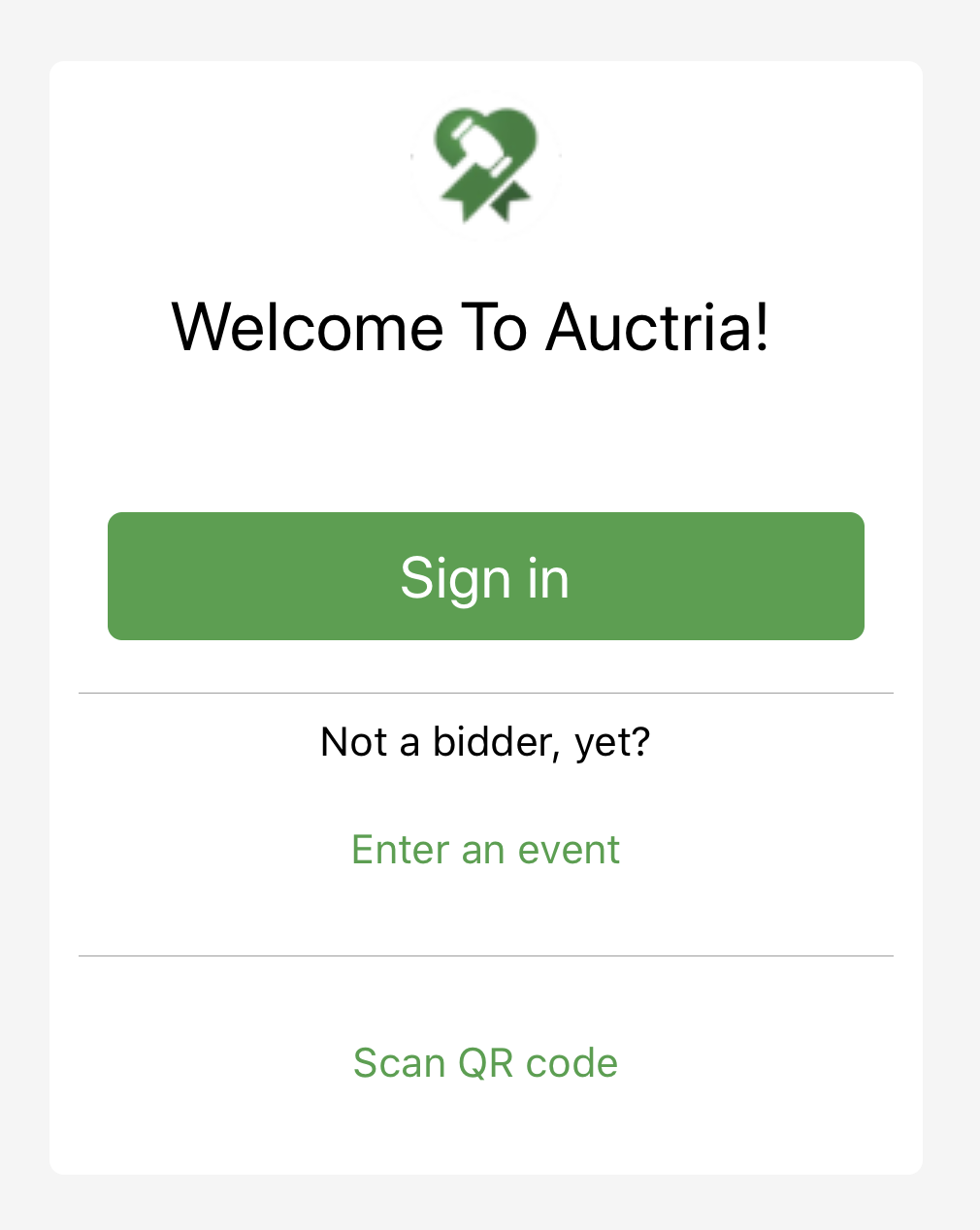
If you're already registered for the event, tap Sign In and enter your Access Code or the email address you registered with. You can also sign in using a QR code if one has been provided to you.
See How Bidders Sign In for more details on the sign-in process.
Event Home Page
Once signed in, the app displays your event's auction website home page — the same page guests see in a browser.
Best experience
For the best mobile app experience, make sure the event website has been set up before guests sign in. See How To Create A New Event Website for details.
Catalog
The item catalog in the mobile app matches the catalog on the auction website — same items, same layout.
Placing Bids
Placing bids in the mobile app works the same way as on the auction website, since the bidding experience is tied to how the website is configured.
Mobile Menus
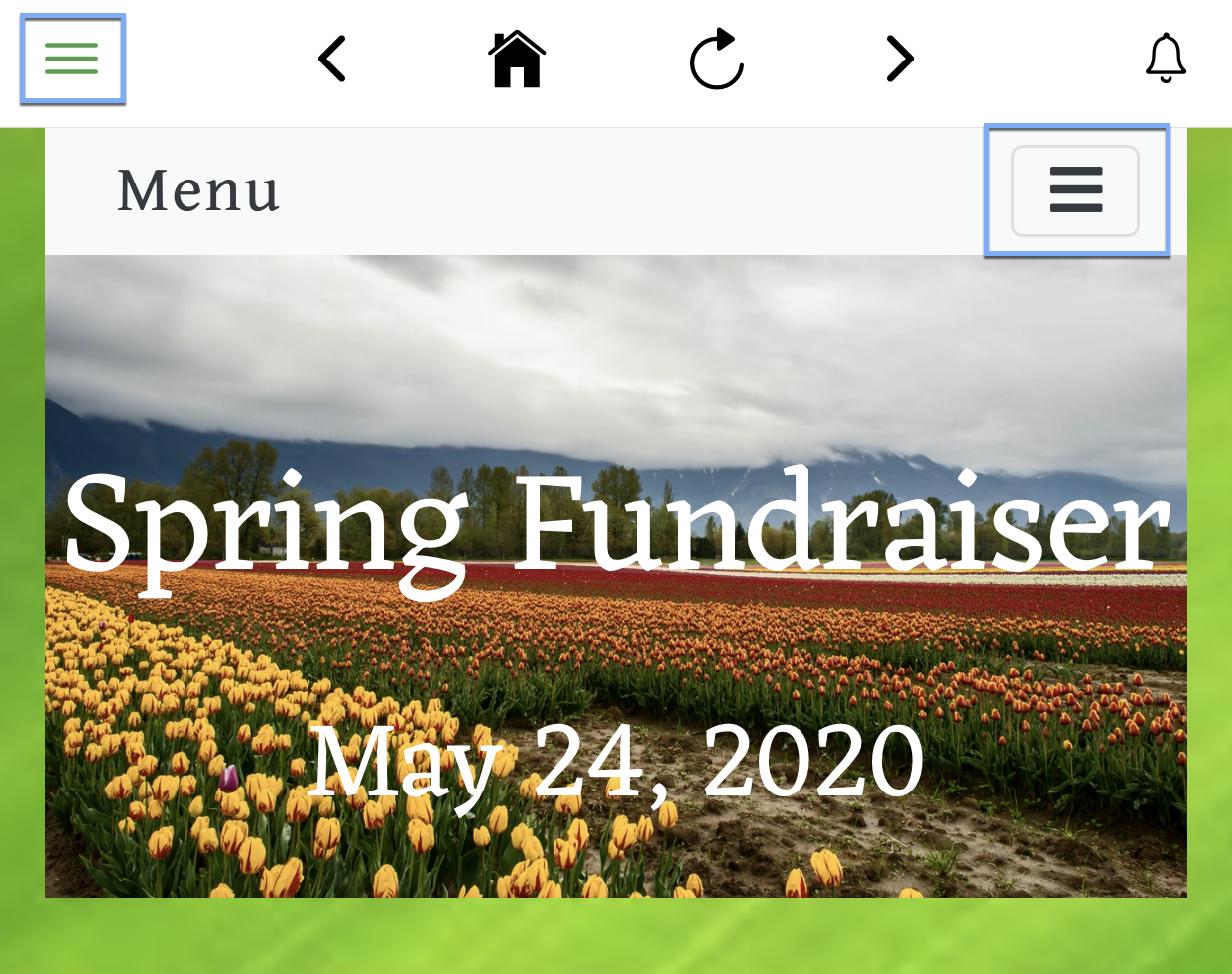
The mobile app displays two menus. The menu in the top-left corner belongs to the app itself. The menu near the top-right corner belongs to the auction website.
Notifications
The app delivers notifications both from the app itself and from any on-screen notifications configured on the auction website. See Send Mobile Notifications for more details.