
This guide covers how to unlink participants using the Check-In page.
Unlink Participants
To unlink participants, click Check-In on the left sidebar. This will open the Check-In page.
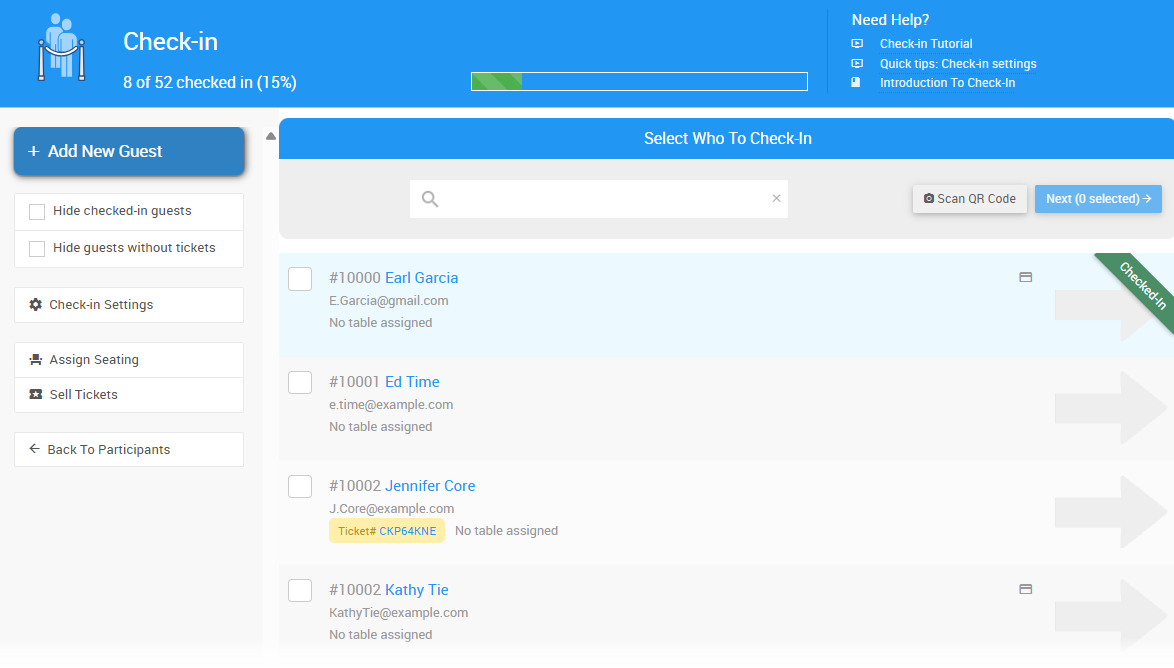
An example from a demonstration event.
Select the Participant to Unlink
All registered participants are listed on the Check-In dashboard. Linked participants will share the same Paddle#.
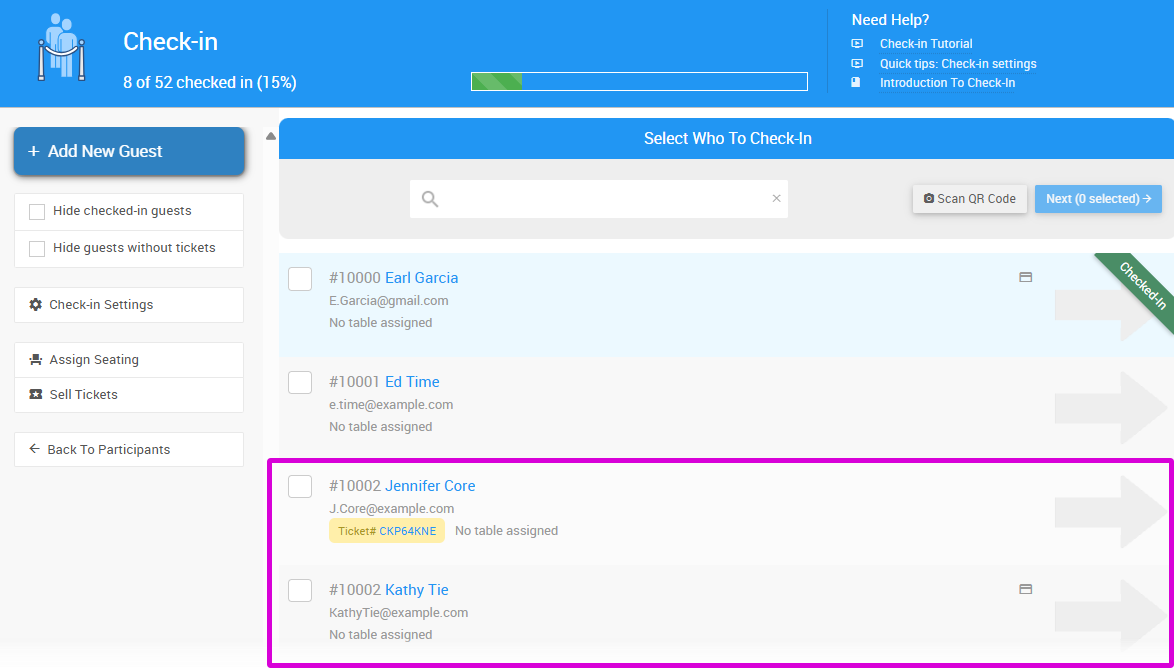
An example from a demonstration event.
Click the arrow beside the participant you want to unlink — this is the participant whose Paddle# will change. This opens their check-in record.
Unlink and Confirm
On the check-in record, click Unlink from family.
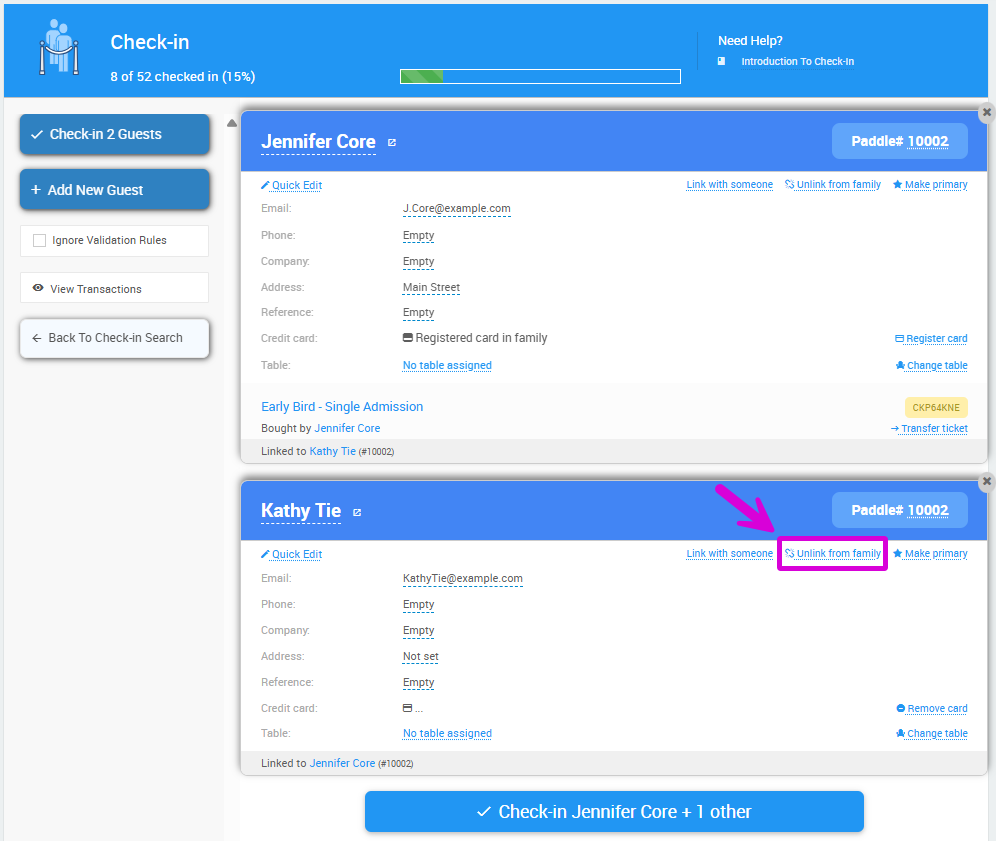
An example from a demonstration event.
A confirmation window will appear, noting that the unlinked participant will be assigned a new unique Paddle#. Click Continue to proceed.
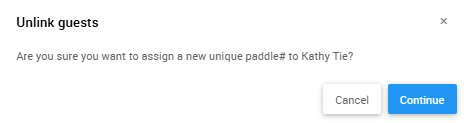
An example from a demonstration event.
The page will refresh showing the participant's new Paddle# — the next available number in the current sequence.
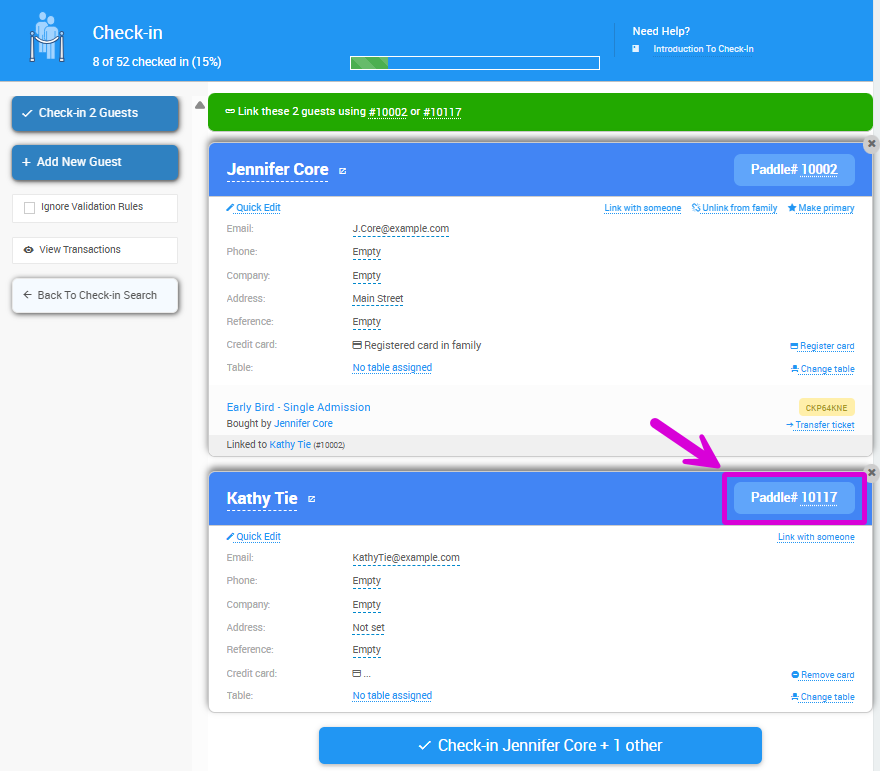
An example from a demonstration event.
Tip
The newly unlinked participant is automatically assigned the next available Paddle#.