
Learn about Standard and Advanced Texting, and how to start sending and receiving text messages with your participants.
Text Message Requirements
The Text Messages feature requires a paid license to use.
Please note: this feature is not available outside of North America at this time.
Auctria offers two versions of text messaging: Standard Texting and Advanced Texting. Both are available with paid licenses and help you stay connected with your participants throughout your event.
Texting is a great way to keep participants in the loop: they'll get notified when someone outbids them, when they win an item, or when you want to send them a personalized link to your event website. Participants can also text your event number to take part in the event. See Text Bidding to learn about the texts your participants can send.
Choosing Your Texting Plan
Here's how the two versions compare:
| Feature | Standard Texting | Advanced Texting |
|---|---|---|
| Automatic notifications (bidding updates, registration confirmations, check-in alerts, and item won messages) | Yes | Yes |
| Participants can text back to place a bid | Yes | Yes |
| Send your own custom or bulk text messages | No | Yes |
| Phone number | Assigned from our shared pool | Your own dedicated number |
| Setup | One click in your Auctria dashboard | Requires a registered Texting Profile |
Standard Texting
Standard Texting is quick and easy to set up—just one click in your Auctria dashboard and you're ready to go. No registration forms, no waiting, no extra costs.
With Standard Texting, your participants will get all the important automatic notifications like bidding updates, registration confirmations, check-in alerts, and item won messages. They can even text back to place their next bid when they've been outbid. The only thing you can't do with Standard Texting is send your own custom messages or bulk texts to everyone.
When you use Standard Texting, we'll assign your event a phone number from our shared pool—easy and automatic.
Advanced Texting
Advanced Texting gives you everything in Standard Texting, plus the ability to send custom text messages and choose your own dedicated phone number for your event.
To use Advanced Texting, you'll need to register a Texting Profile through your Auctria dashboard. This profile gets reviewed externally by the Campaign Trust Registry (CTR), and the approval process can take a month or longer, so it's important to plan ahead.
These registration rules do not apply to Canadian organizations.
If you've already set up a Texting Profile with Auctria, you can check its status anytime by going to the Texting page in your Auctria Dashboard under Communication. Recent profiles should be good to go, though older ones might need a quick update.
Learn More
- For more information see How To Set Up Advanced Texting.
- See Advanced Texting Profile for additional details on these settings.
Your Texting Dashboard
When you create a new event, texting isn't turned on automatically. If you're new to texting or haven't used it before, we recommend starting with Standard Texting as it's the simplest option.
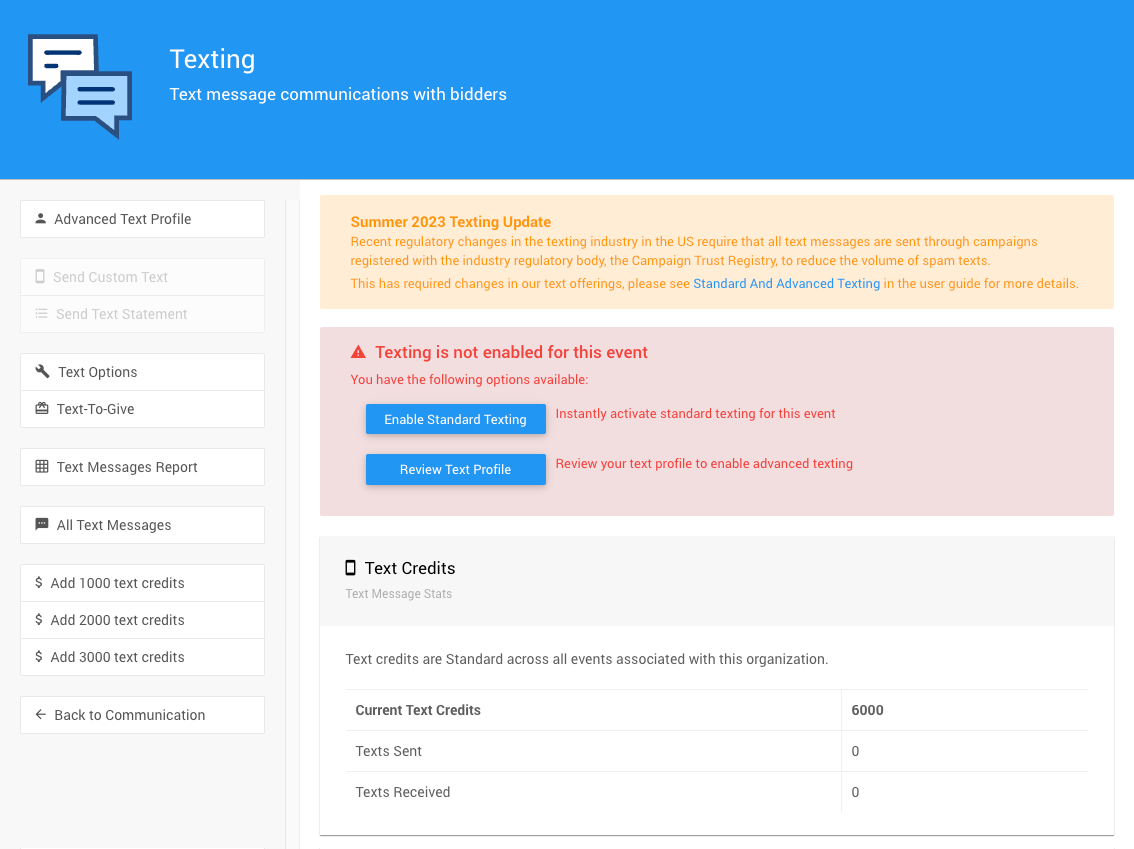
The Texting Dashboard without texting enabled - new event default.
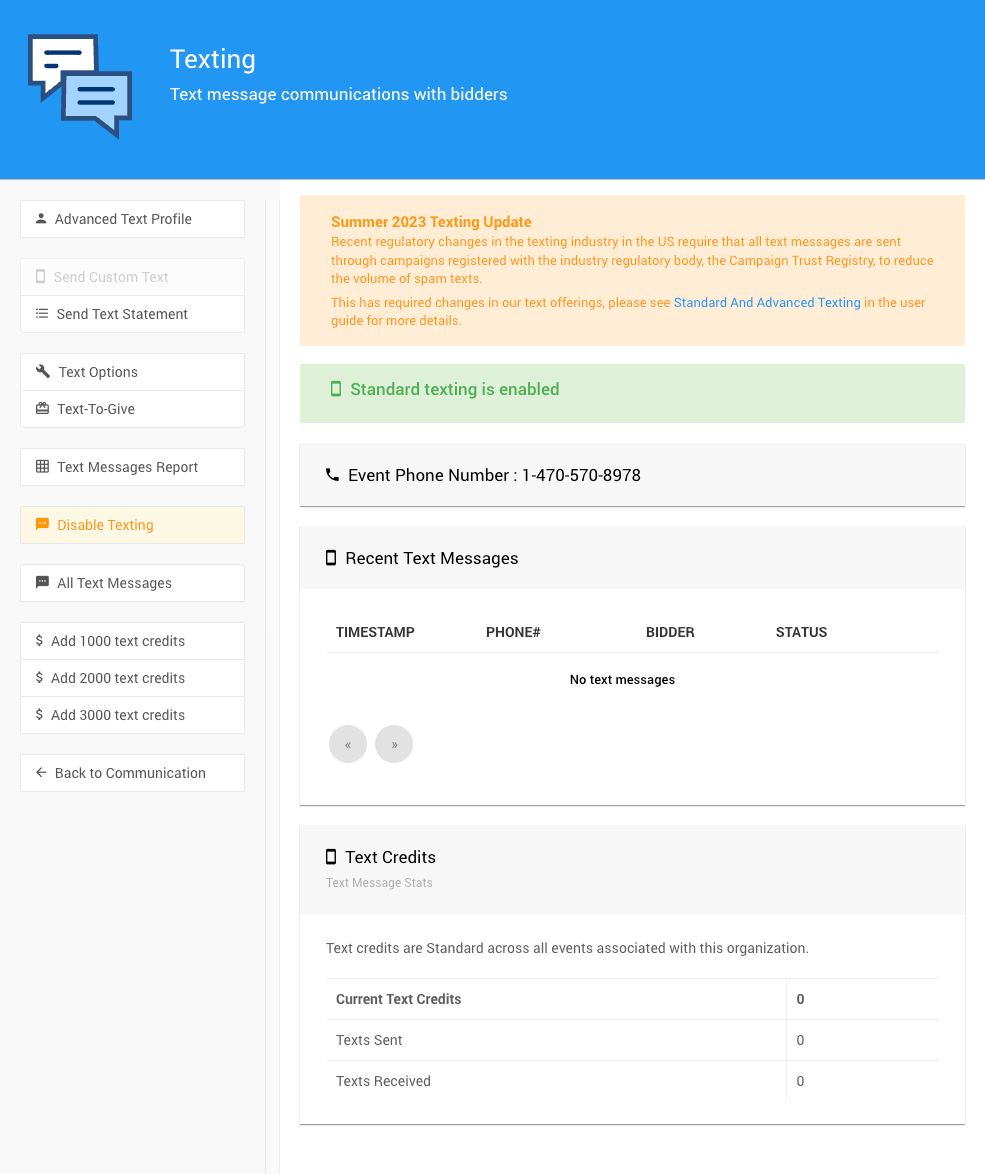
An example Standard Texting dashboard from a demonstration event.
Turning On Standard Texting
To get started with Standard Texting, click the Enable Standard Texting button on your main Texting Dashboard page (Communication → Texting). This option is available for all paid licenses.
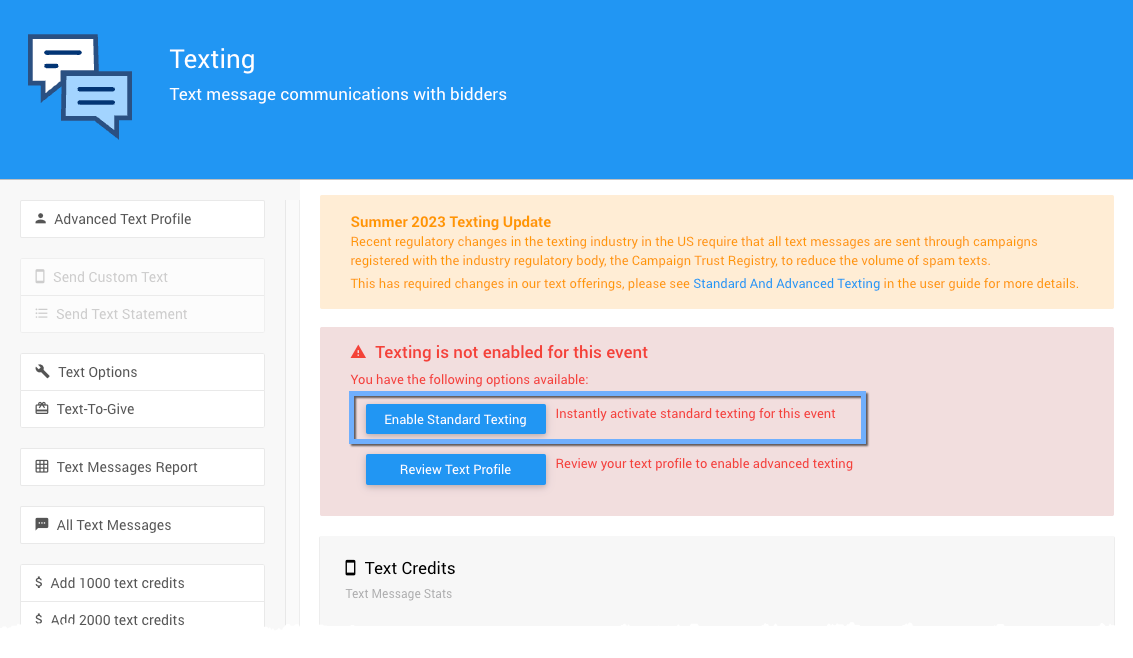
The Enable Standard Texting button on the Texting Dashboard.
Turning On Advanced Texting
To use Advanced Texting, make sure your Texting Profile is up-to-date and matches what you have on file with your EIN registration. Everything needs to match for Advanced Texting to work properly.
See How To Set Up Advanced Texting for more details on getting everything set up.
Getting Consent from Your Participants
Before we can send text messages to your guests, they need to opt in and give permission. Participants can opt in in any of these ways:
- By checking the box during online registration where they can choose to receive texts.
- By sending a text to your event number.
- By giving you verbal permission during check-in, in which case you can add them manually.
Understanding Text Credits
Every text message uses text credits, and the number of credits included depends on your Auctria license. If you run out, you can buy more at any time. We recommend keeping an eye on your usage so you don't run into any surprises.
Each text credit covers up to 160 characters. If your message is longer than that, it'll use multiple credits.
Credit Usage
Every text message, whether you send it or receive it, uses one credit. So if a participant texts in a bid and you send back a confirmation, that's 2 credits total.
You can buy credits in bundles of 1,000 messages for $25 per 1,000.
Paid License Credits
Emerald and Diamond licenses come with text credits included! Emerald gets 1,000 credits and Diamond gets 3,000 credits as part of the license.
See How To Set Up Advanced Texting for more details on getting everything set up.
Connecting Participants to Phone Numbers
The texting system works by matching text messages to your Participant Records using each participant's cell phone number. You can see this on the participant details page—check out Participant Details for more info.
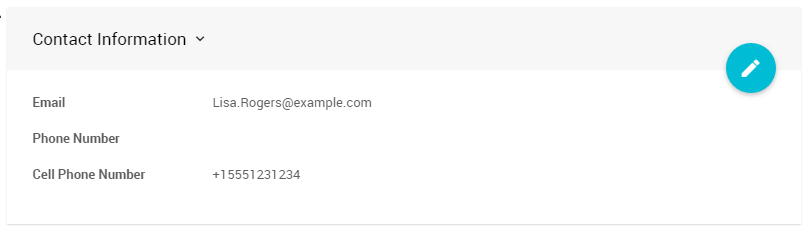
The cell phone number on a participant's details page.
When someone sends a text to your event number, we'll look up their cell phone number to find the right participant record.
Unique Cell Phone Numbers
Each participant needs their own unique cell phone number. If two participants share the same number, the system won't know who's texting and things won't work properly.
You can add phone numbers manually during check-in, or they can enter their number themselves during online registration. Once texting is enabled, you can also let participants register themselves by text or claim their participant number via text.
See Participants & Phone Numbers for more details on how this works.
What Participants Can Do by Text
Your participants can send various text commands to your auction number to participate in the event. Check out Text Bidding to see all the available commands.