
An overview of the Auctria license.
Auctria License per Organization
The license belongs to the Organization, not to a specific user.
Accessing Your License Details
To view your license information:
- From the main Auctria Dashboard, click Organizations in the sidebar
- Click the License button on the Organization dashboard
- Your License Details page will appear
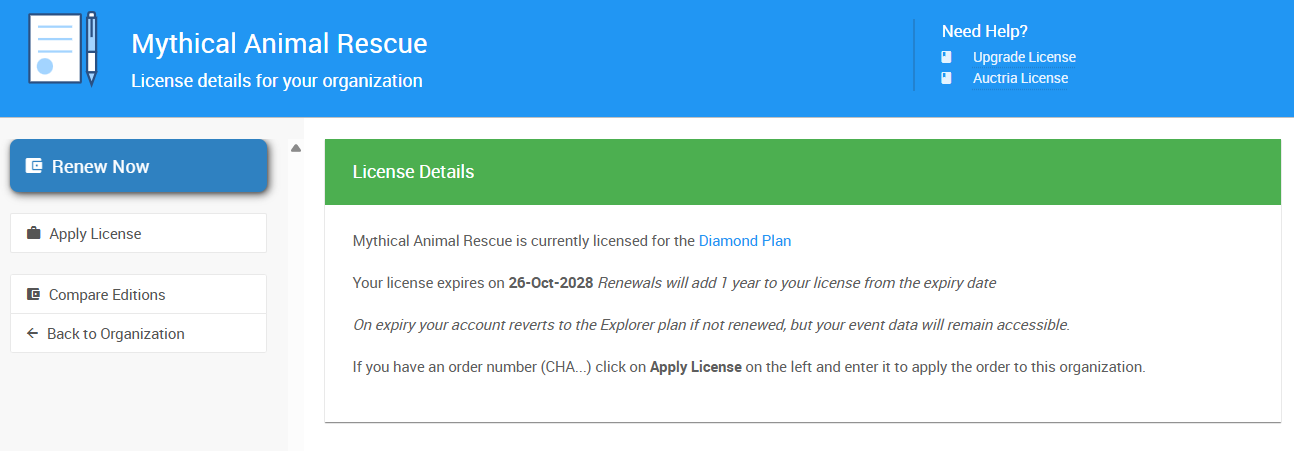
An example License Details page.
The License Details page shows important information about your subscription, including your current plan name and expiration date.
Understanding Your License
Your Auctria license is tied to your Organization, which means:
- One license covers all events your Organization runs
- The license stays with the Organization even if team members change
- If your license expires, you'll revert to the Explorer (free) plan, but all your event data remains safely accessible
For a detailed comparison of features included in each plan, visit our Auctria Pricing page.
Renewing Your License
When it's time to renew, click the Renew Now button on the License Details page. This will take you to the Auctria online store checkout with your current plan already added to the cart.
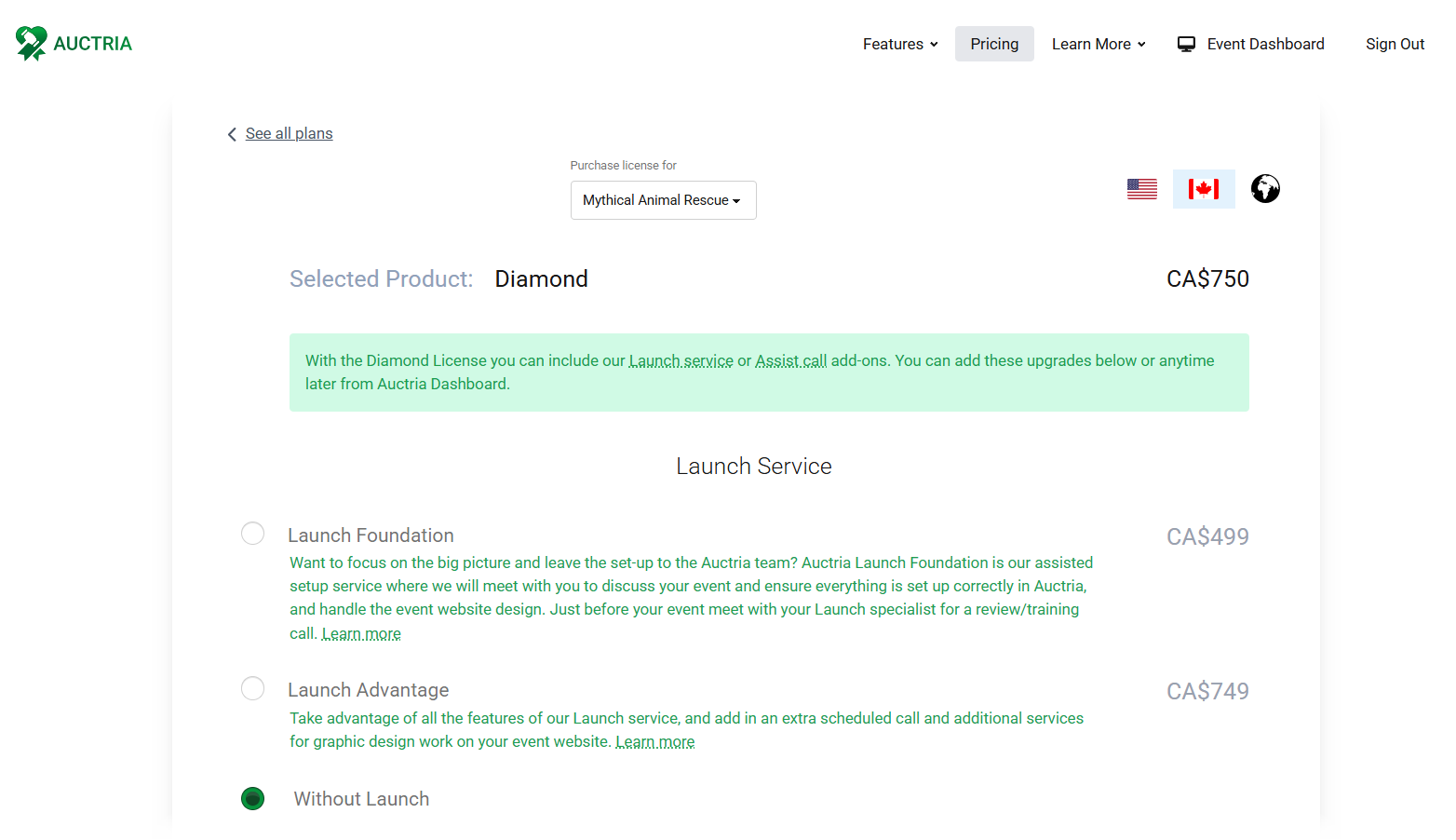
The checkout page with your renewal pre-selected.
Upgrading Your License
Want access to more features? You can upgrade to a higher-tier license at any time.
Mid-Year Upgrades:
If you upgrade during your current license year, you'll only pay the price difference between your plans. Your expiration date stays the same—you're just unlocking more features for the remainder of your subscription period.
To upgrade, click Compare Editions to view available plans and their features, then select the plan that's right for you.
See Upgrade License for step-by-step upgrade instructions.
Applying a License Manually
If you have an order number from a license purchase and need to apply it manually:
- Click the Apply License button on the License Details page
- Enter your order ID in the window that appears
- Submit to update your license
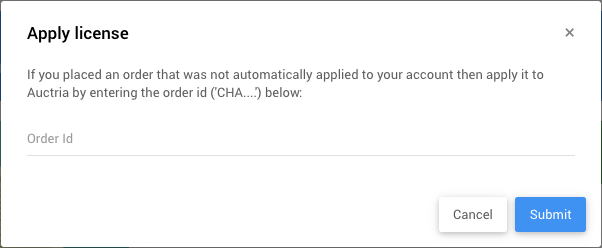
This is useful if your license didn't automatically update after purchase.
Finding Your Receipt
After purchasing or renewing a license, you'll receive two emails:
1. Auctria Receipt
Contains your order reference number (useful for manually applying your license if needed). Note: This receipt doesn't include the purchase amount.
2. Payment Receipt from Stripe
Sent separately by Stripe.com (our payment processor) and includes the full payment details. Check your spam/junk folder if you don't see it.
Viewing Your Auctria Receipt
To find your Auctria receipt in your account:
- Click on your email address (top-left of the event website) or the three-dot menu (top-right of the dashboard)
- Select My Profile
- Click View Email History in the sidebar under the Email section
- Scroll down to find "Auctria.com Receipt"
- Click the eye icon on the right to view the email

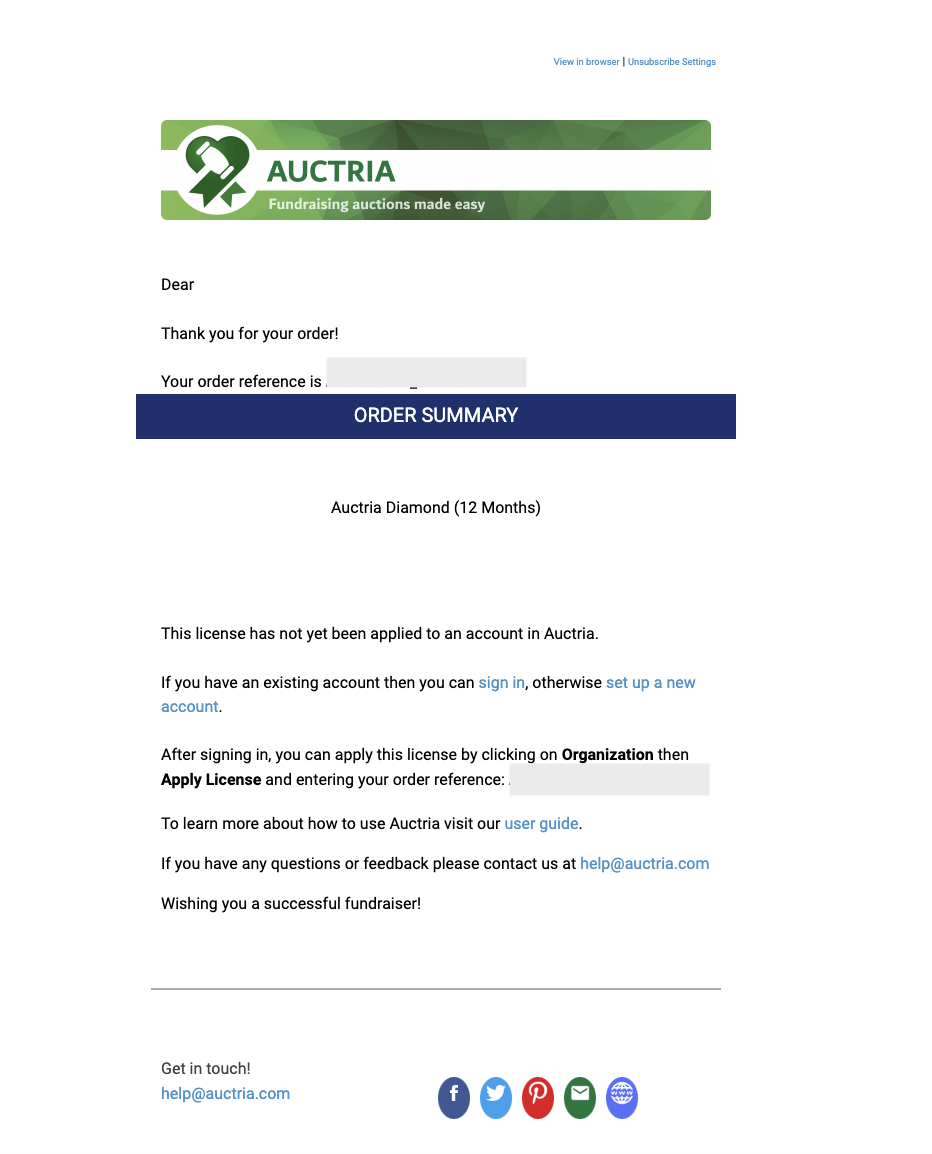
An example Auctria Receipt email.
Important
You must be logged in with the same email address used to purchase the license to view the receipt in your email history.
Comparing License Plans
Not sure which plan is right for you? Click Compare Editions on the License Details page to visit our pricing page, where you can review all available plans and their features side by side.
Questions?
For more information about:
- Upgrading your license: Upgrade License
- Managing your Organization: Introduction To Organizations