
An overview of the activate/deactivate tickets process.
Need to deactivate a ticket that won't be used? Or reactivate one that was deactivated by mistake? You can handle both actions easily from the Tickets dashboard.
This page walks you through how to deactivate or reactivate individual tickets — without needing to open the participant record.
Deactivate a Ticket
If a ticket was purchased but won't be used, you can deactivate it in just a few clicks.
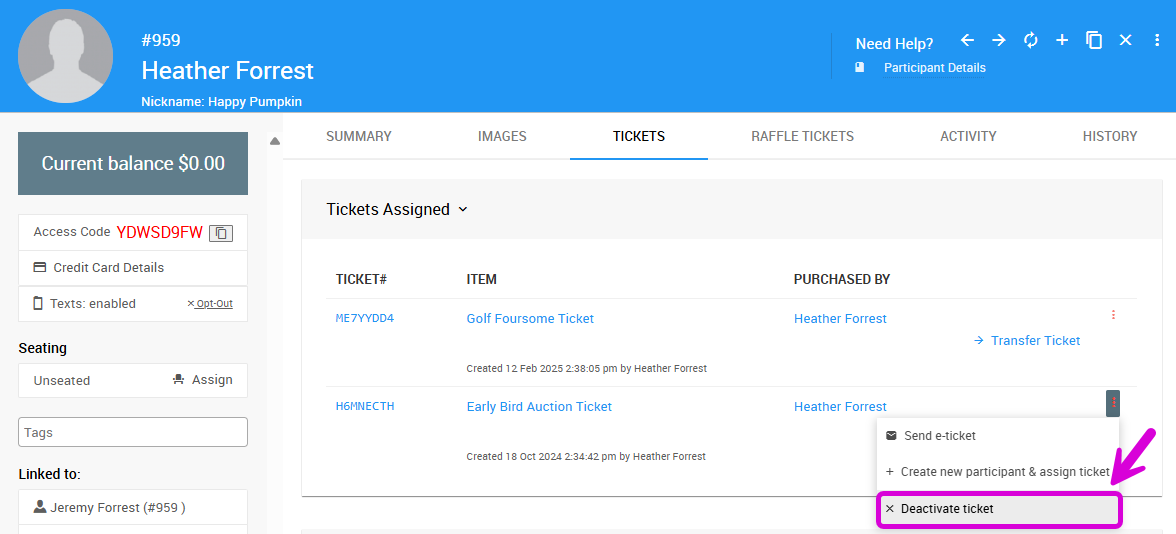
From Participant Details
You can deactivate a ticket directly from a guest's record (Participant Details) using the Tickets tab.
An example from a demonstration event.
Click the ⁝ icon on the right side of the ticket you want to deactivate, then click Deactivate ticket.
From the Tickets Dashboard
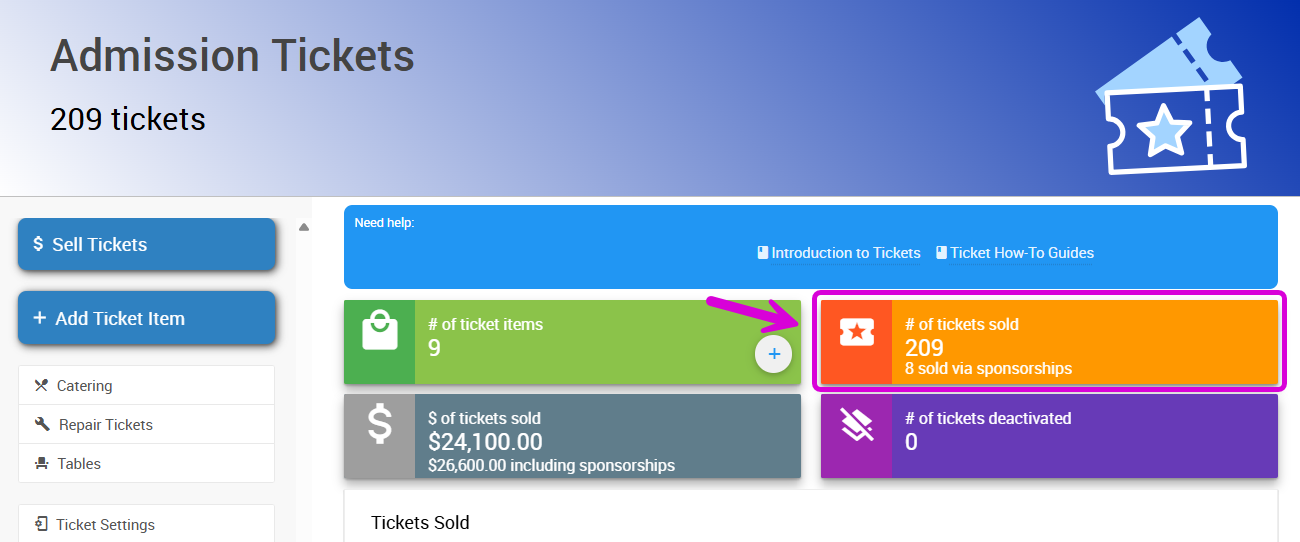
- From the Tickets dashboard, click the # of tickets sold block to open the list of sold tickets.
An example from a demonstration event.
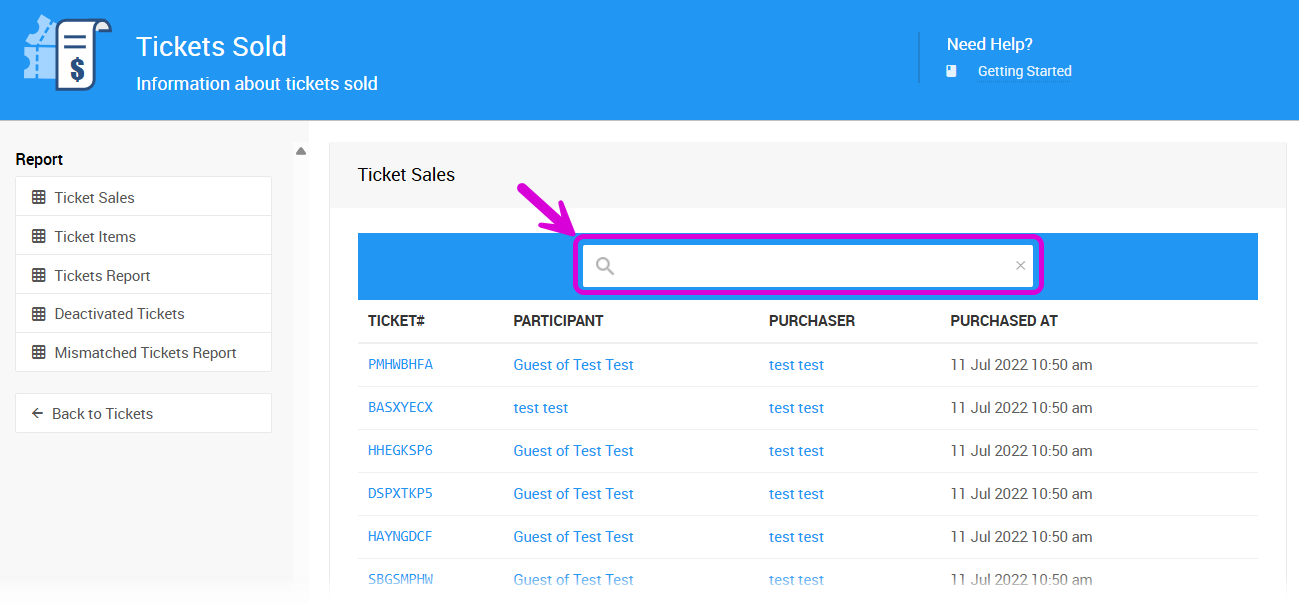
- Use the search bar to find the purchaser by name, or scroll through the list to find the ticket you want to deactivate.
An example from a demonstration event.
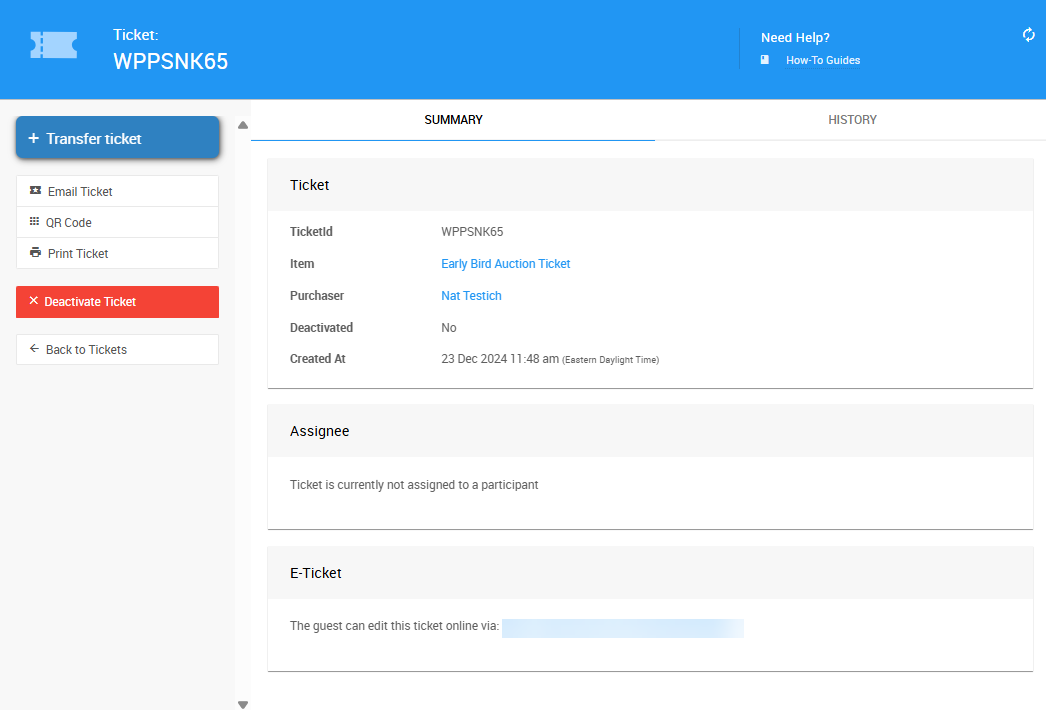
- Select the ticket to open its details.
An example from a demonstration event.
- On the left sidebar, click Deactivate Ticket and follow the confirmation prompt.
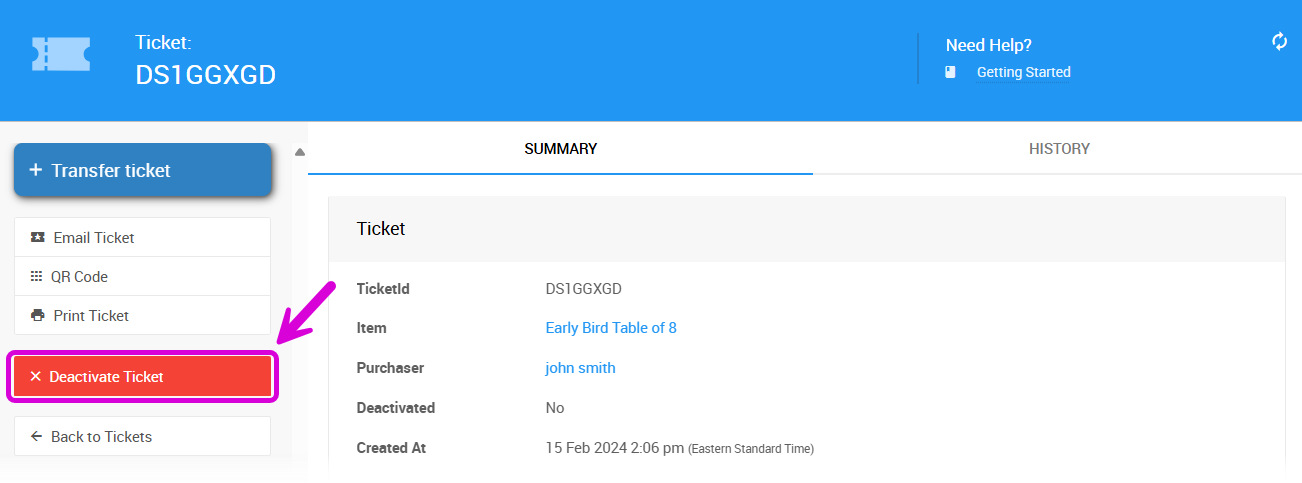
An example from a demonstration event.
Deactivated Tickets
Once deactivated, a red Deactivated Ticket banner appears at the top of the ticket's details page.
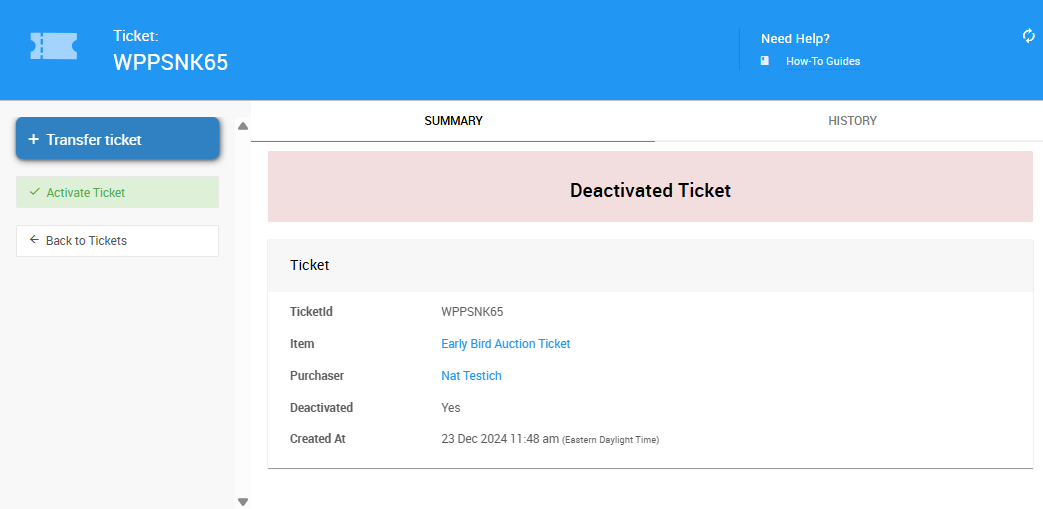
An example from a demonstration event.
Note
Deactivating a ticket doesn't remove the purchase or issue a refund.
Reactivate a Ticket
If a ticket was deactivated by mistake, or the guest changes their mind, you can reactivate it.
- From the Tickets dashboard, click the # of tickets deactivated block to open the list.
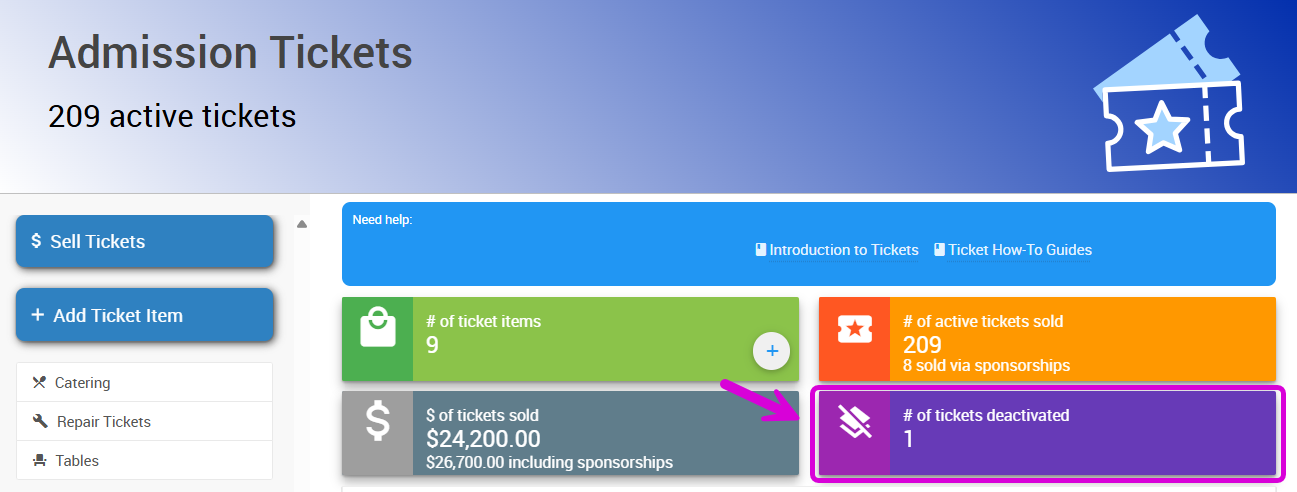
An example from a demonstration event.
- Double-click the ticket you want to reactivate.

An example from a demonstration event.
- Click Activate Ticket on the left sidebar and follow the confirmation prompt.
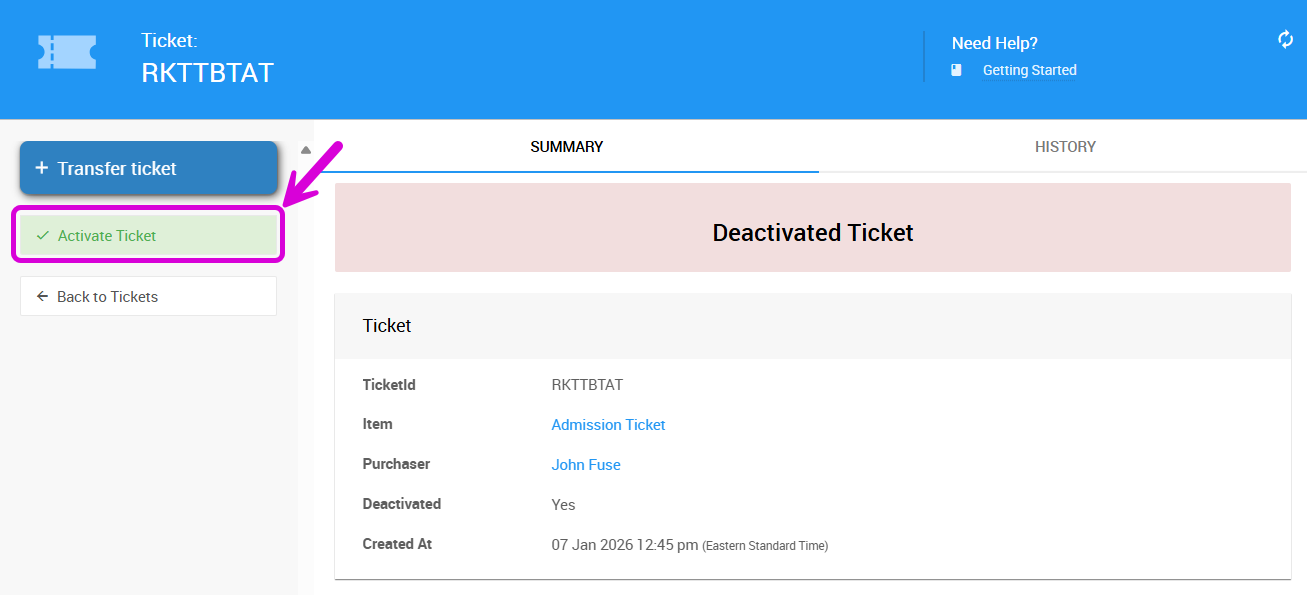
An example from a demonstration event.
Once reactivated, the red Deactivated Ticket banner disappears from the ticket's details page.
Note
Reactivating a ticket doesn't restore any guest assignment details that may have been previously added.