
YouTube Live Chat
Learn how to add the YouTube Live Chat element to your event website page.
What is the YouTube Live Chat element?
The YouTube Live Chat element embeds real-time chat from a live YouTube video directly onto your event website page. This allows your attendees to participate in the conversation without leaving your site.
Important to know
The YouTube Live Chat element displays only the chat—not the video itself. To show both the video and chat, you'll also need to add the Video element to your page.
How to add YouTube Live Chat to your page
Step 1: Add the element
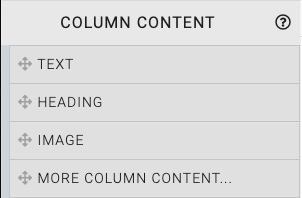
Drag and drop the More Column Content element from the Website Editor Sidebar into your desired column space.
Step 2: Select YouTube Live Chat
In the Choose Content window that appears, click YouTube Live Chat.
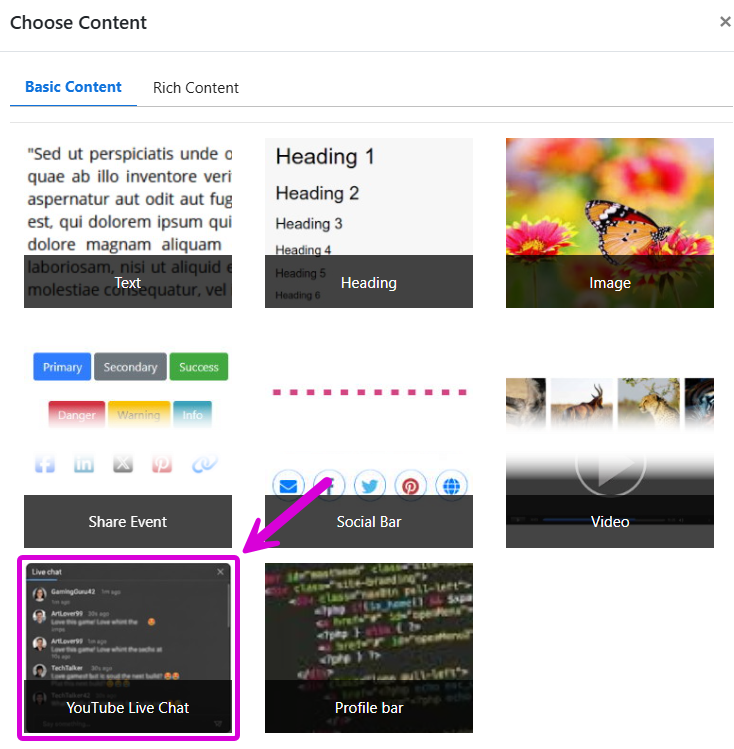
The element will be added to your page, but it won't display chat yet. You need to connect it to a specific video first.

Step 3: Enter your YouTube Video ID
In the YouTube Live Chat section of the Website Editor sidebar, locate the YouTube Video ID field.
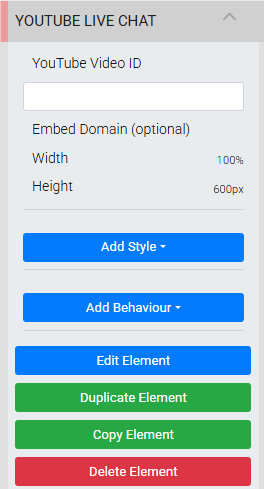
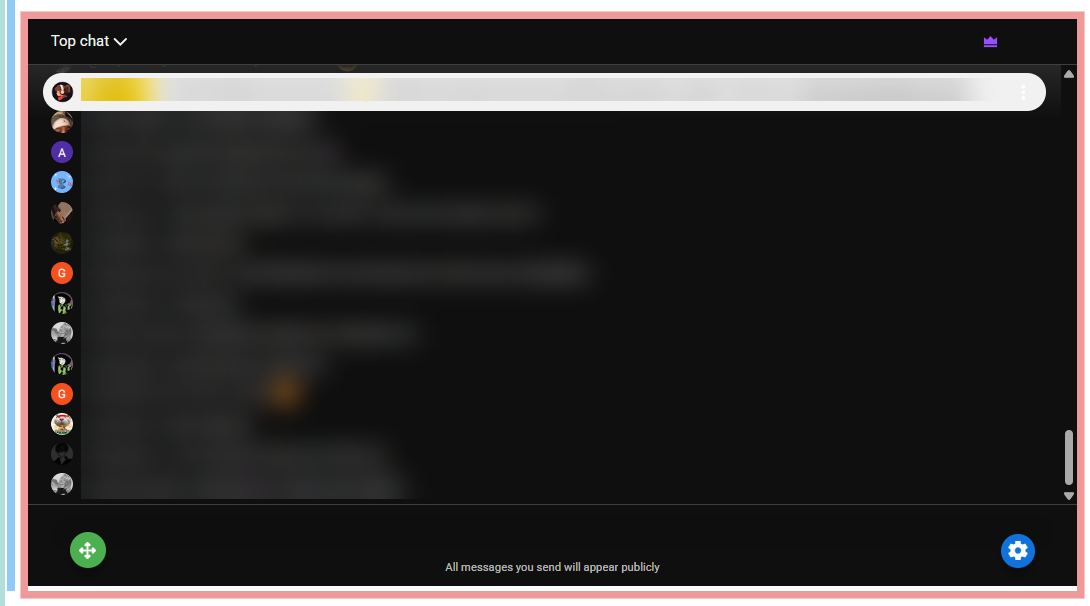
Enter your YouTube Video ID in this field. The chat will automatically appear on your page.
Finding your YouTube Video ID
The Video ID is the string of characters after v= in your YouTube URL. For example, in https://www.youtube.com/watch?v=dQw4w9WgXcQ, the Video ID is dQw4w9WgXcQ.
What your attendees will see
Once configured, all messages sent in the chat will appear publicly and in real time on both your event website and on YouTube. Attendees can interact with the chat directly from your page.
Last reviewed: February 2026