
How To Unlink Participants
This guide covers how to unlink participants using the Check-In page.
Unlink Participants
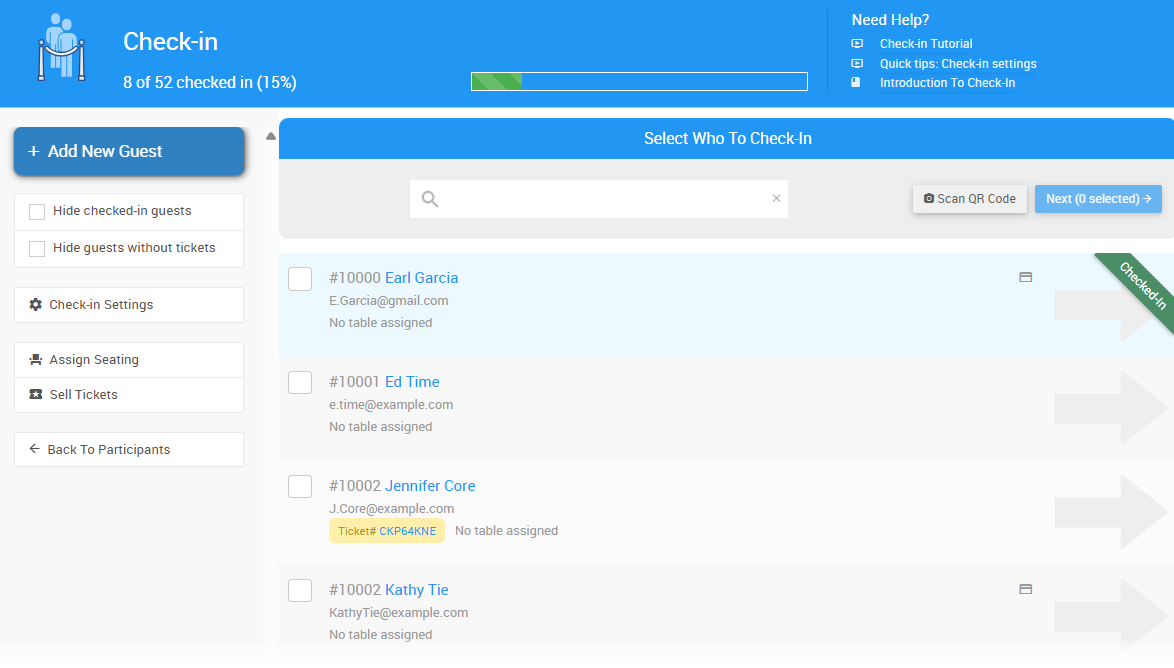
To unlink participants, click Check-In on the left sidebar. This will open the Check-In page.
Select the Participant to Unlink
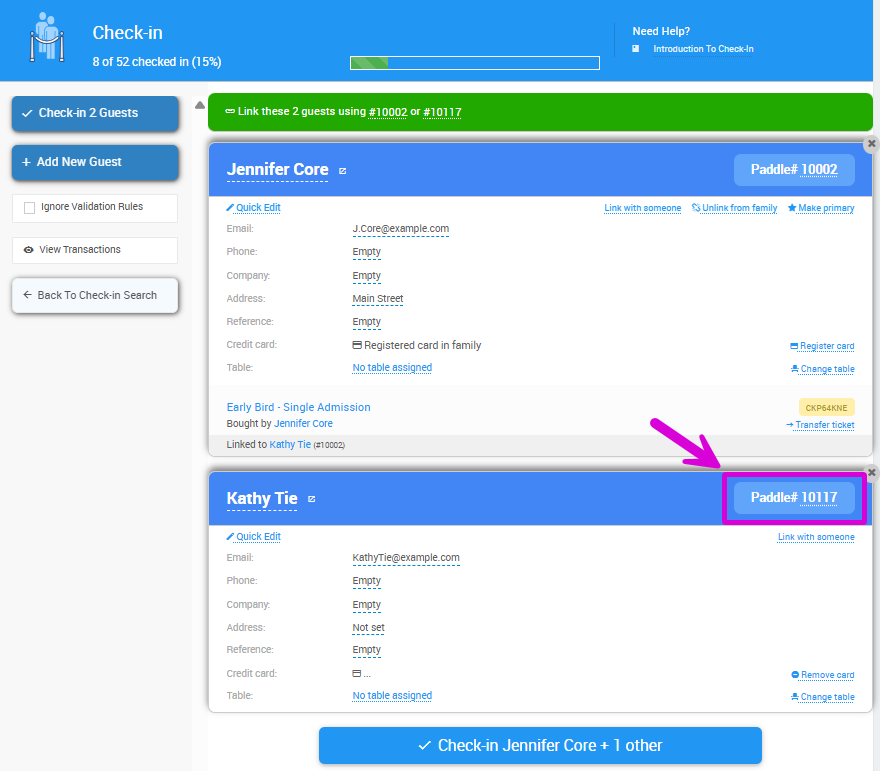
All registered participants are listed on the Check-In dashboard. Linked participants will share the same Paddle#.
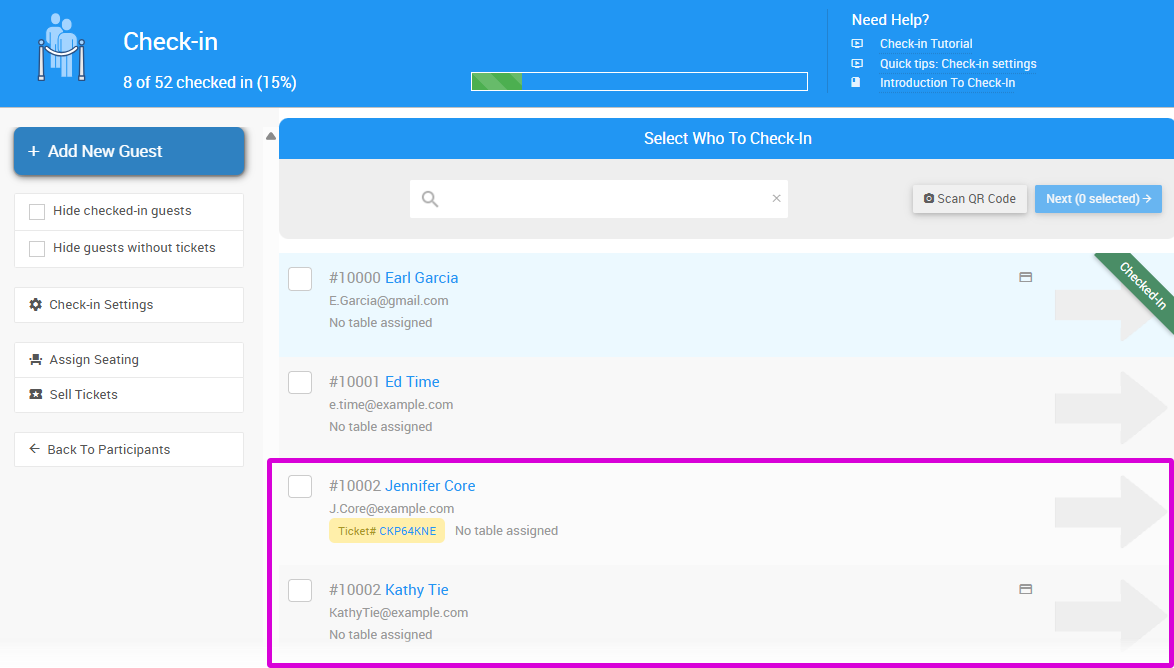
Click the arrow beside the participant you want to unlink — this is the participant whose Paddle# will change. This opens their check-in record.
Unlink and Confirm
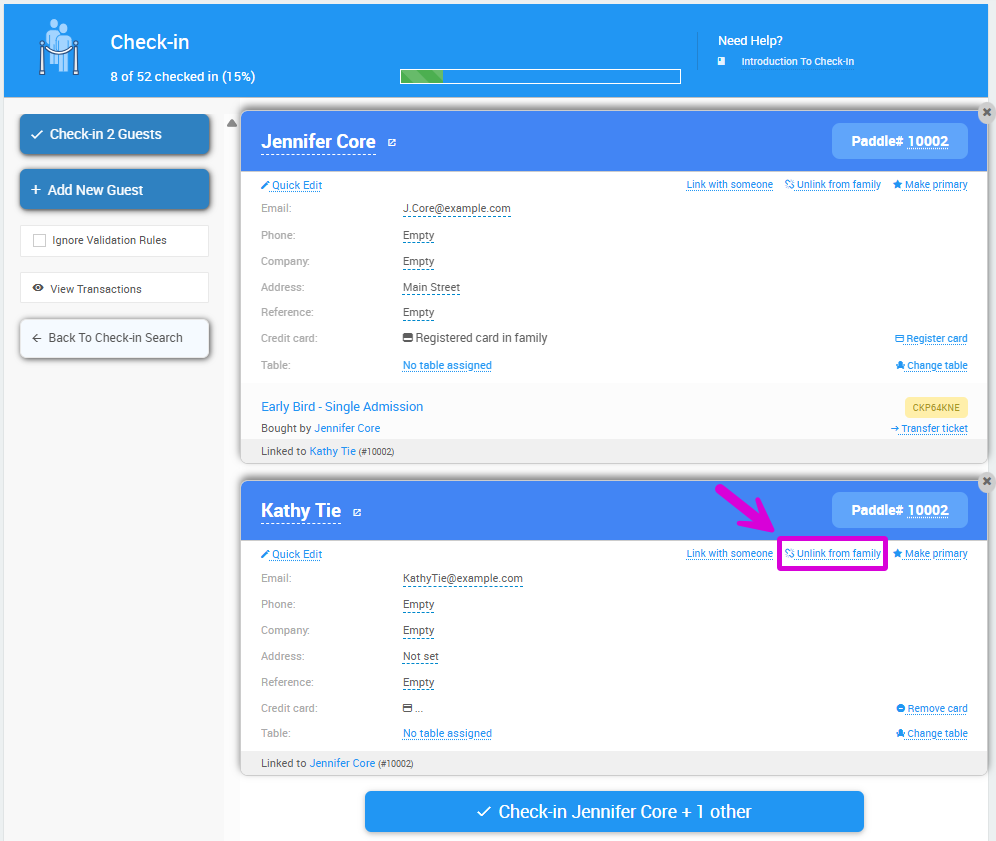
On the check-in record, click Unlink from family.
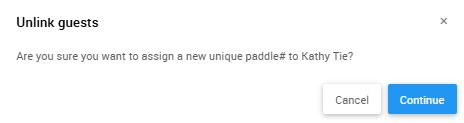
A confirmation window will appear, noting that the unlinked participant will be assigned a new unique Paddle#. Click Continue to proceed.
The page will refresh showing the participant's new Paddle# — the next available number in the current sequence.
Tips
The newly unlinked participant is automatically assigned the next available Paddle#.
Last reviewed: March 2026