
How To Turn Off Participant Numbers
Learn how to turn off participant numbers in Auctria.
Auctria requires a Paddle# for participants if you plan to link or merge them. However, if you'd prefer to assign paddle numbers at check-in as guests arrive — for example, to hand out physical paddles in order — you can work around this by pre-assigning high numbers (e.g. 10,000+) before the event.
Tips
This also makes it easy to see at a glance which participants have already checked in!
Renumber Existing Participants
If you already have participants in the system, start by renumbering them to a high range.
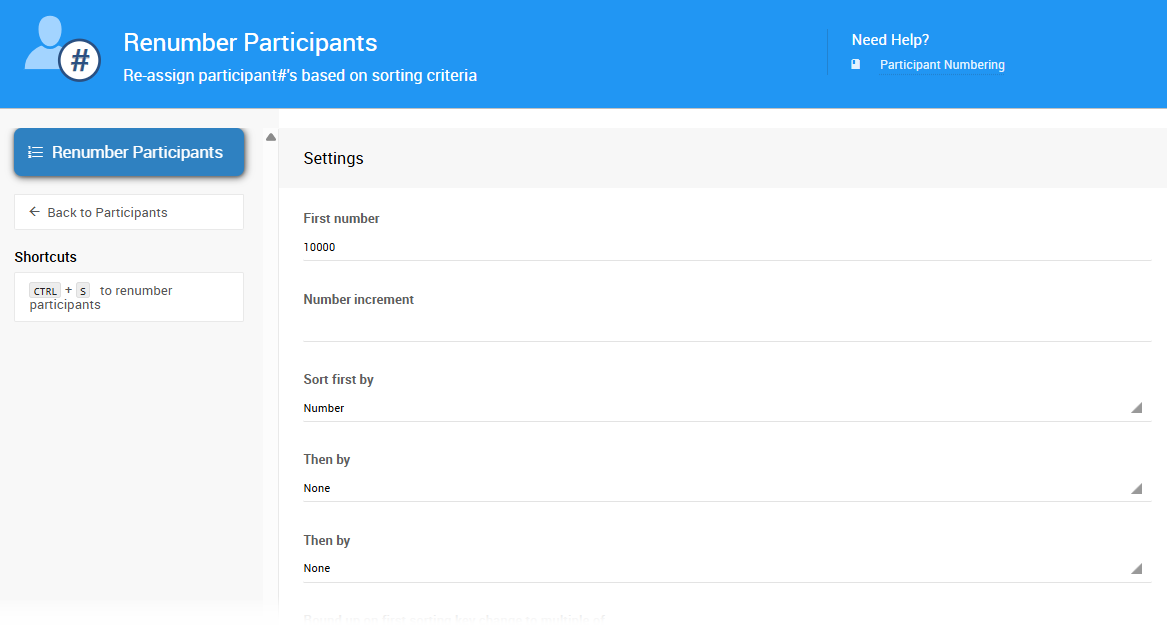
Go to Participants (left sidebar) → Participant Numbering, set the First number to 10000, select Number under Sort first by, then click Renumber Participants.
Adjust the Next Assigned Paddle#
Next, update the starting point for any new participants added going forward.
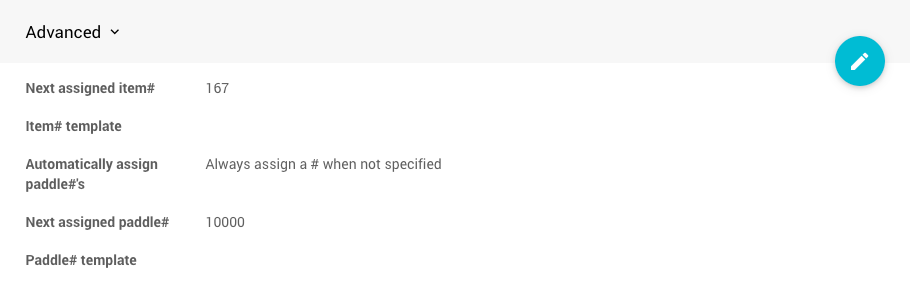
Go to Event in the main sidebar and set Next assigned Paddle# to 10000. It's fine if that number is already taken — the system will automatically find the next available number above the value you enter.
From this point on, any participants added manually or through online registration will receive a high number automatically.
Reassign Paddle Numbers at Check-In
You can reassign paddle numbers during Check-In.
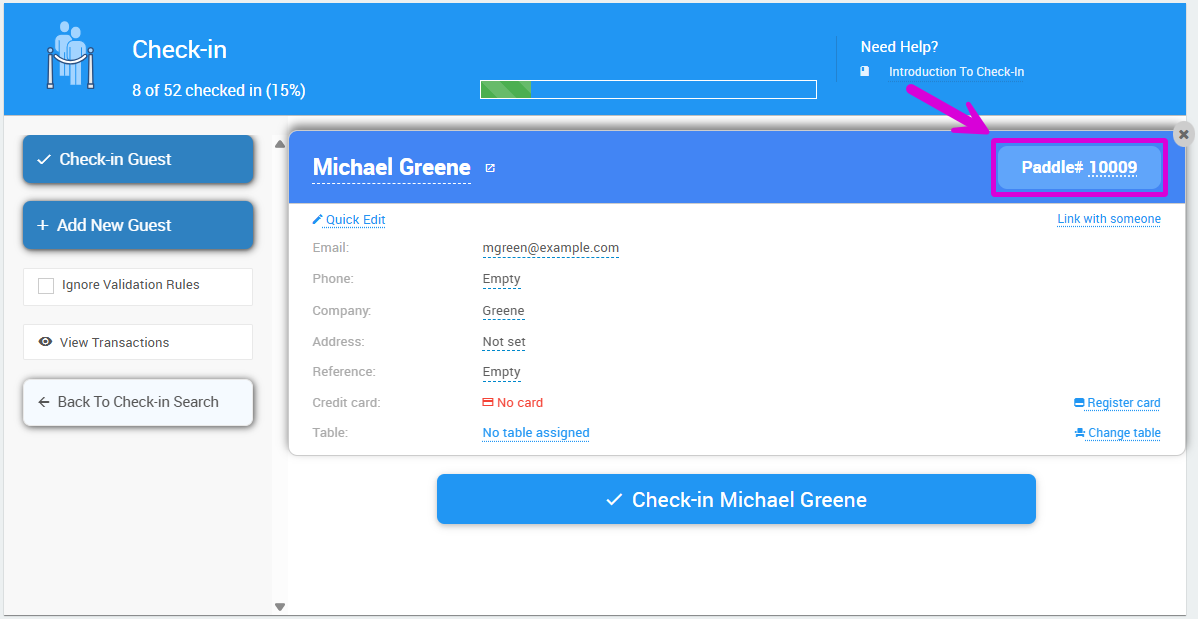
To reassign a Paddle#, click the Paddle# on the top right of the participant's card on the Check-In screen.
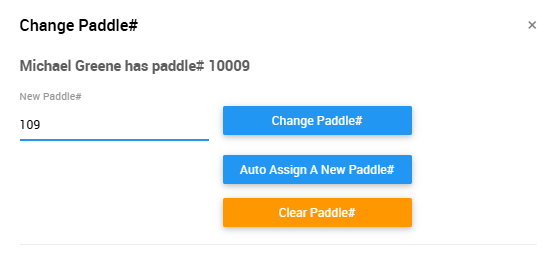
This opens the Change Paddle# window, where you can enter the participant's new number.
Last reviewed: March 2026