
Participant Statements
An overview of the Participant statements and how they can be sent.
Participant Statements give your guests a summary of their event activity — items won, purchases, donations, and payments. Statements can be emailed, printed, or sent by text.
Getting Where You Need To Be
To open Participant Statements, click Participants in the left sidebar, then click Statements.
Linked Participants
If two participants are linked (sharing the same Paddle#), their statement will show both participants' activity combined. To address them together, change the default Bidder.Name reference to Bidder.GreetingNames. See Email Statements for details.
Statement Settings
The settings below apply to all statement types.
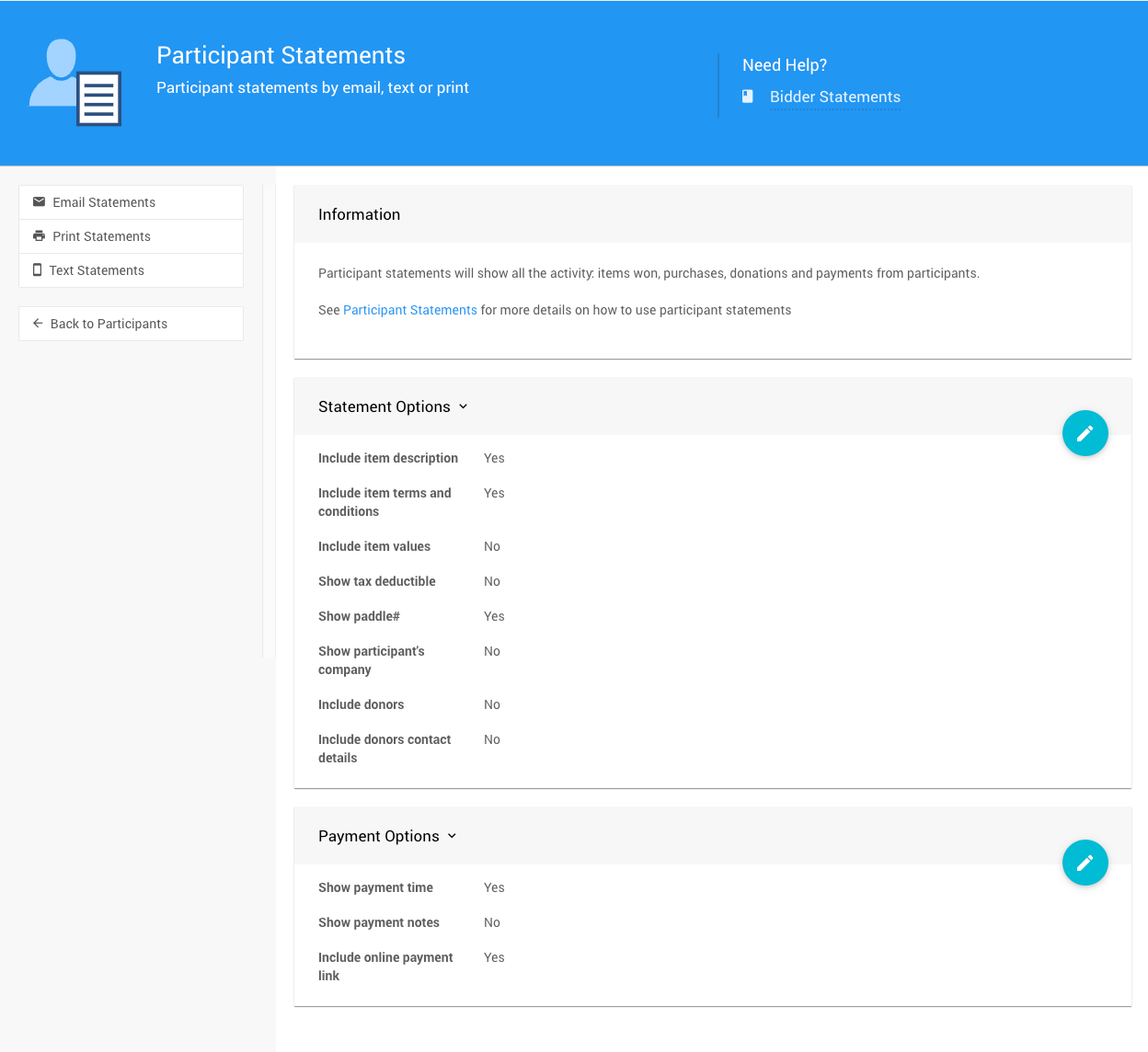
Statement Options
| Setting | Description |
|---|---|
| Include item description | Shows the item description on the statement. |
| Include item terms and conditions | Shows the item's terms and conditions on the statement. |
| Include item values | Shows the item value and winning bid amount. |
| Show tax deductible | Shows the tax-deductible amount, calculated based on item type and Taxable Value. |
| Show Paddle# | Shows the participant's paddle number on the statement. |
| Show participant's company | Shows the participant's company name. |
| Include donors | Shows the donor name if publicly acknowledgeable. |
| Include donors contact details | Shows the donor's address, phone, and email on the statement. |
Tips
If you have winner-specific instructions for an item, add them to the Statement Text field on the item itself rather than in the donor details — donor details apply across all their items and may not be relevant to each one. This is set in the item's Form Wording section. See Form Wording.
Payment Options
| Setting | Description |
|---|---|
| Show payment time | Shows the time of each recorded payment. |
| Show payment notes | Shows any notes attached to payments. |
| Include online payment link | Adds a personalized payment link to emailed statements, allowing participants to pay their outstanding balance online by credit card. Requires credit card processing to be enabled. |
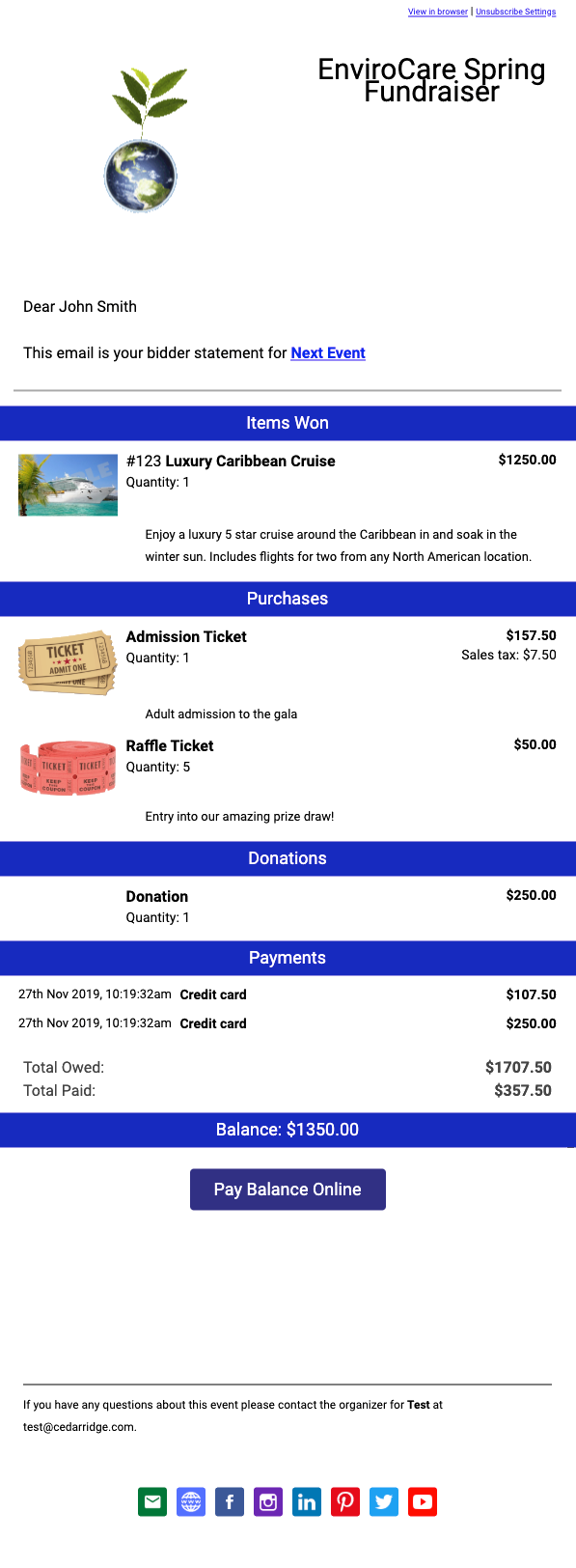
When Include online payment link is enabled, the emailed statement will include a Pay Balance Online button. The link is personalized to each participant and takes them to their online account page to view their statement and pay by credit card.
Last reviewed: March 2026