
Copy Participants
This function will copy participants from one event to another with Auctria.
The Copy Participants feature lets you copy participants from one event to another, saving you from re-entering their details manually.
Selling Tickets?
If your event sells tickets, we recommend skipping this feature — copying participants to a ticket-based event can clutter your participants list with people who may not actually attend.
Before You Start
Copy Participants works as a "push" — you navigate to the source event (the one with the participants you want to copy) and push them to a target event. If you start from a new or empty event, the list will be empty.
To switch to the source event, see Change Events.
Copy Participants
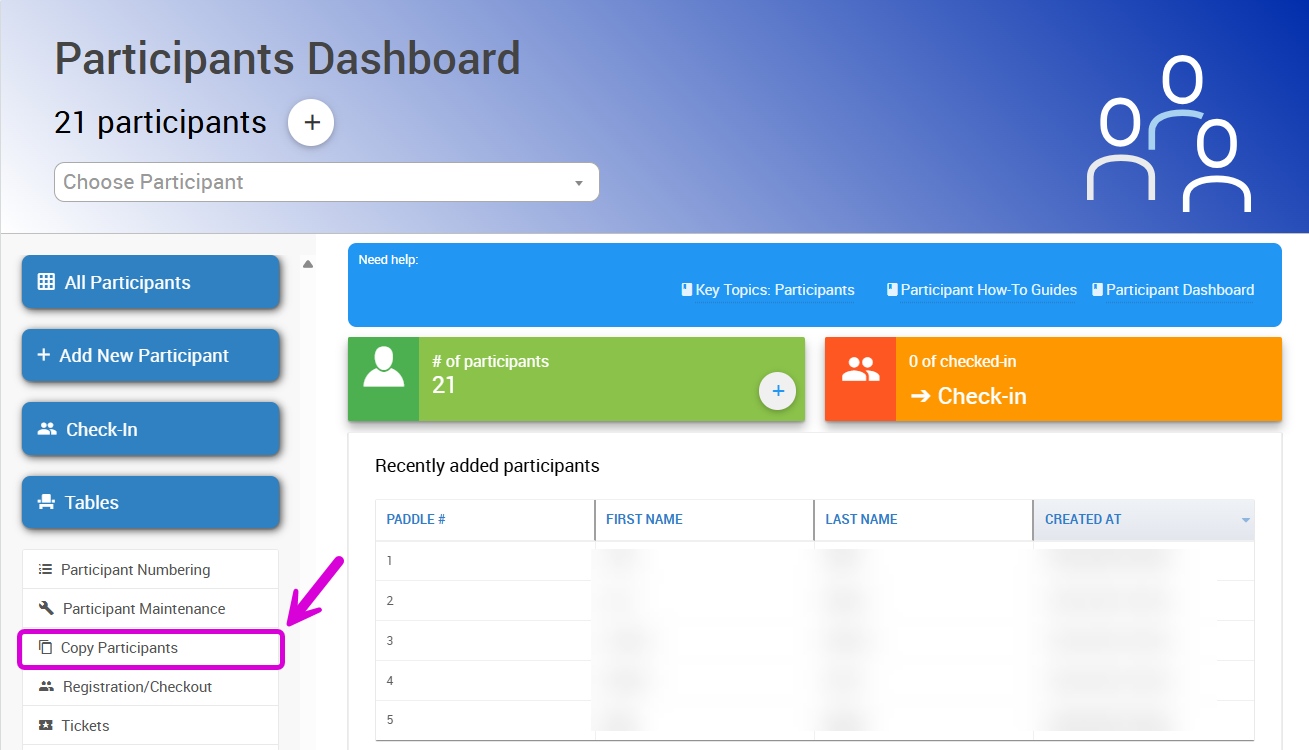
From the source event, go to Participants (left sidebar) → Copy Participants.
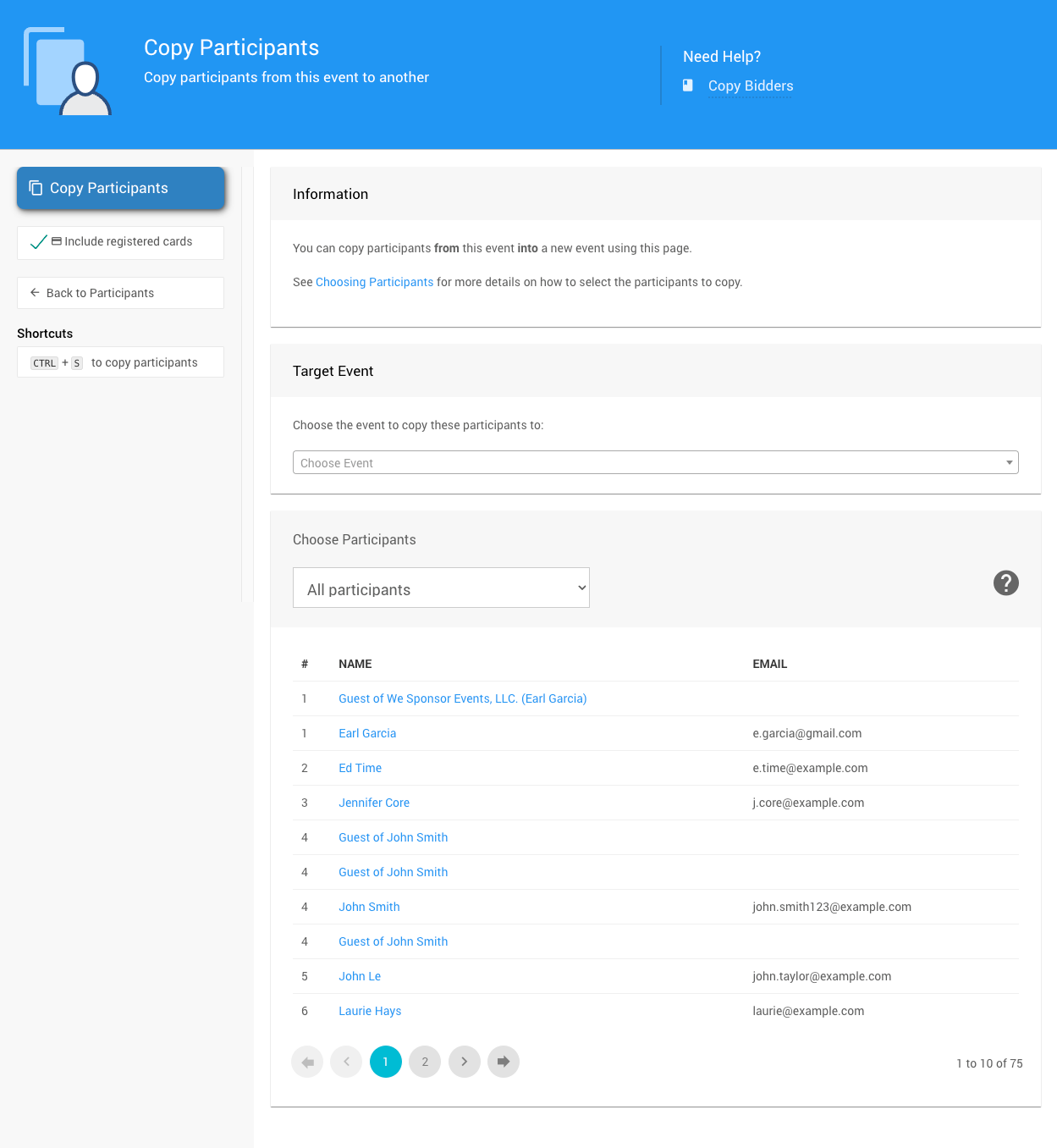
On the Copy Participants page:
- Select the target event from the drop-down list.
- Use the Choose Participants section to select which participants to copy.
- If you don't want to carry over registered credit cards, uncheck Include registered cards.
When your selection is ready, click Copy Participants.
A confirmation window will show the number of participants to be copied. Click Continue to proceed.
Existing Matches Are Skipped
If a participant in the target event already has a matching Paddle# and name, they will be skipped. All other participants will be copied and assigned a new Paddle#.
If you run into any duplication issues after copying, see Participant Maintenance for tools to help resolve them.
Last reviewed: March 2026