
User Accounts
Auctria User Accounts have access to the event dashboards available to organizers.
Auctria allows multiple user accounts per organization so you can collaborate with others on your events. Each user is identified by their email address and can have different permission levels to control what they can view and edit.
Accessing User Accounts
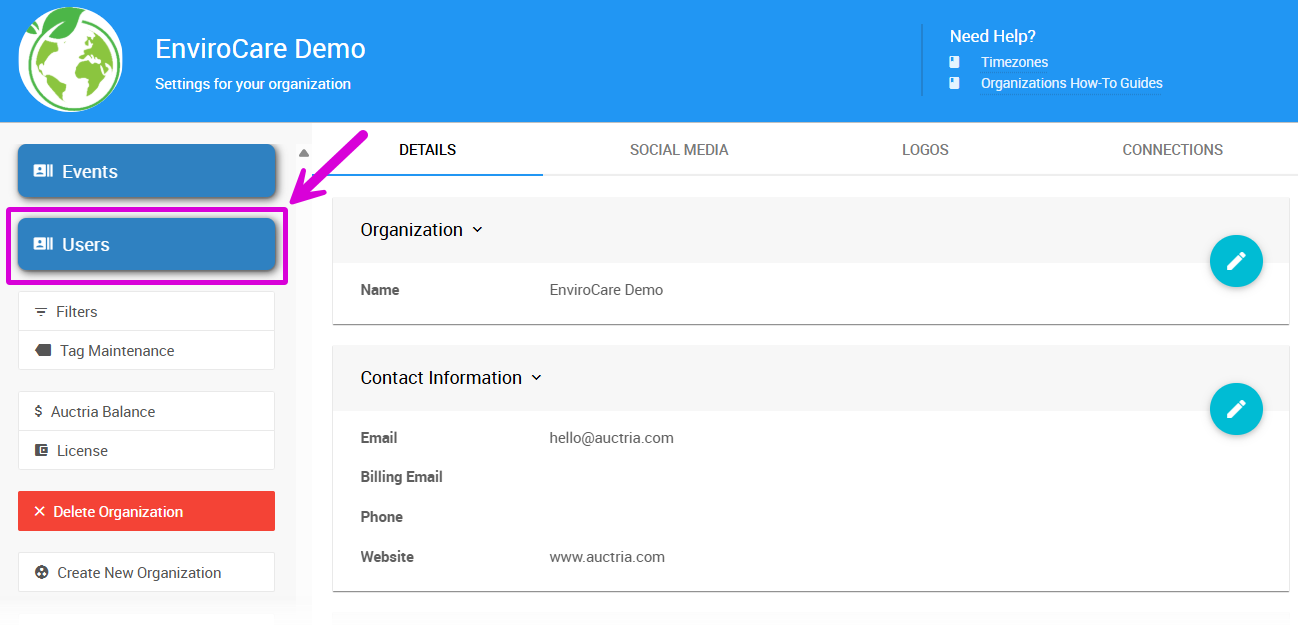
To manage users in your organization:
- From the main Auctria Dashboard, click Organizations in the sidebar
- Click the Users button in the organization dashboard sidebar
Understanding User Permissions
Different users can have different permission levels based on their role in your organization. This allows you to give team members the access they need while protecting sensitive information and preventing accidental changes.
Permission Levels Explained
| Permission Level | What They Can Do |
|---|---|
| None | Cannot view or edit the event. Use this to set default permissions to "None" and then grant access to specific events only, or to block access to a particular event. |
| Read Only | Can view all event data but cannot make any changes. Great for board members or volunteers who need to see information but shouldn't edit it. |
| User | Can make normal changes like adding participants, items, and donors; recording bids; and processing checkout payments. Cannot delete records or perform bulk operations (like sending statements to all participants). |
| Power User | Same as User, plus permission to delete records and perform all bulk operations. Cannot create new events or manage organization-level settings. This is the minimum level required to edit the event website. |
| Admin | Full access to everything! Can manage the organization, create and delete events, add/remove users, set up text messaging, and issue credit card refunds. Only Admins can issue credit card refunds. |
Default Permissions
If you see a blank permission level for a user, it means they have not been assigned a default permission. In this case, they'll have the permissions set for them in each individual event.
Admin Accounts
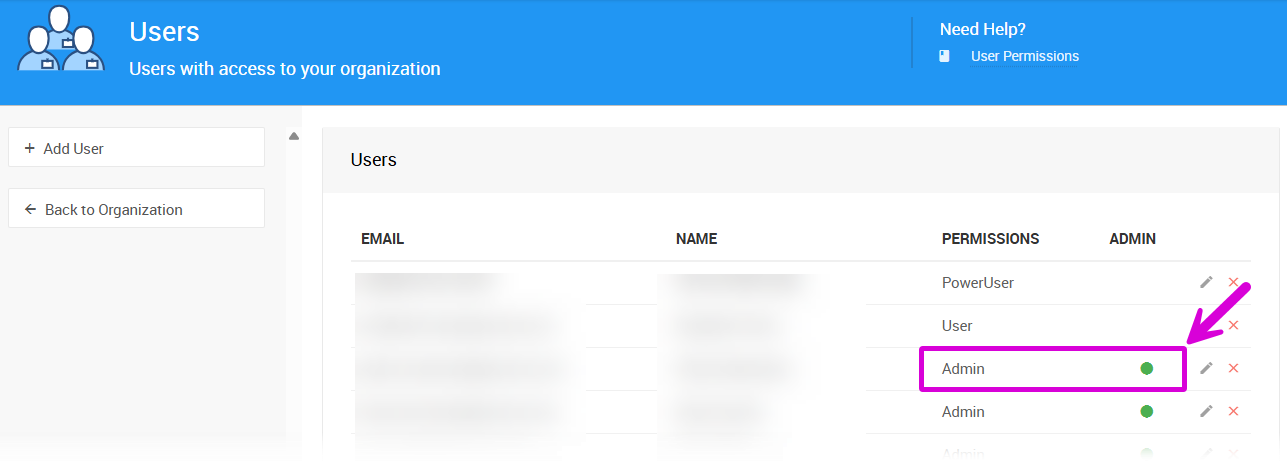
Users can also be marked as an administrator by choosing the Admin permission level. This gives them Admin-level permissions across all events, regardless of their default permission level. You will see a marker next to their name in the Admin column of the User list.
Admin Permissions Override
The Admin flag overrides all other permission settings and grants full Admin access to everything in the organization.
This is especially useful when:
- Your organization runs multiple events with different permission needs
- You want certain users to have oversight across all events
- You need to quickly grant someone temporary full access
Setting User Permissions
Default Permissions
Each user has a default permission level that applies to all events in your organization unless you specify otherwise. This is shown on the main Users list page.
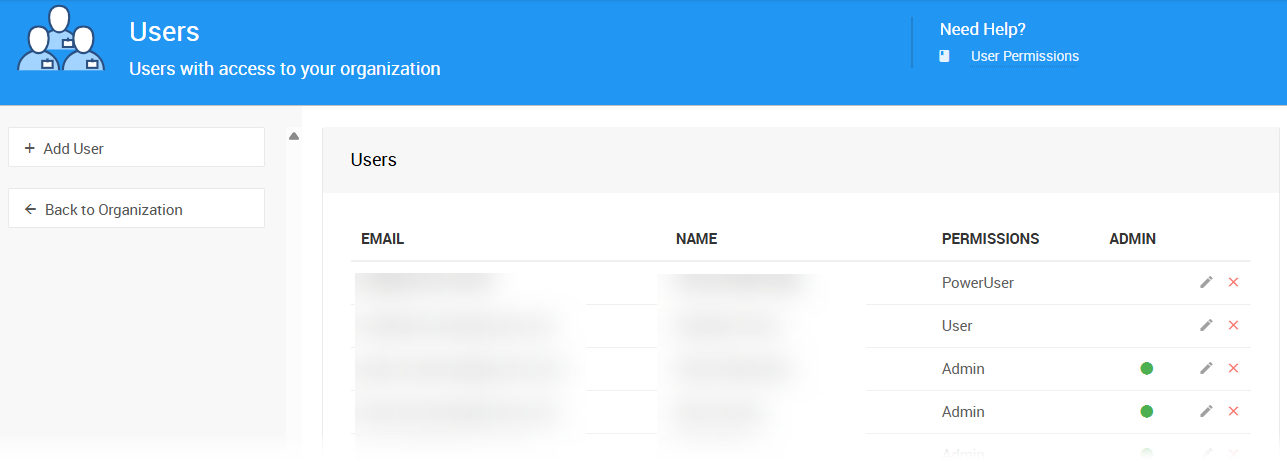
To set or change a user's default permission:
- From the Users page, find the user you want to modify
- Click the pencil icon next to their name
- Set their permission level using the drop-down in Options on the user details page
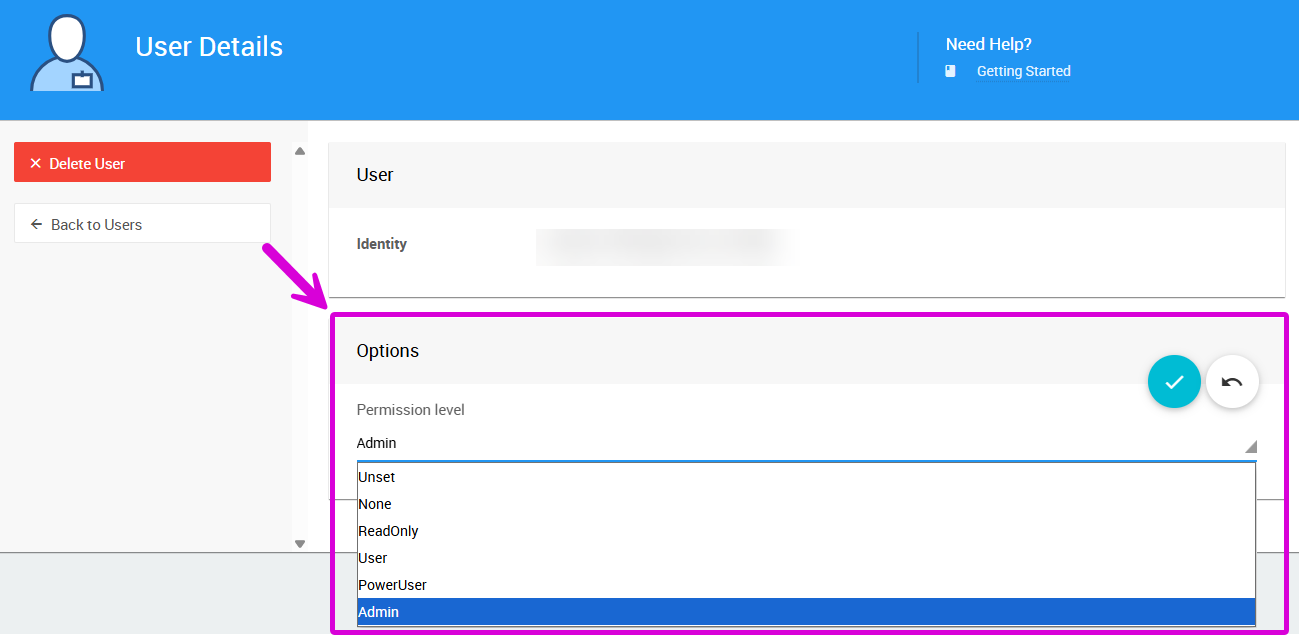
See Edit Users for more details on modifying user settings.
Event-Specific Permissions
You can also assign different permissions for individual events. This is helpful when someone needs different access levels depending on which event they're working on.
Event-Specific Permissions Example
A volunteer might have Read Only permission by default across your organization, but you give them User permission for the specific event they're helping with.
Event-level permissions are set on the Event Details page. See Event Permissions for detailed instructions.
Managing Users
Common user management tasks:
- Add a new user: Adding Users
- Edit user details: Edit Users
- Remove a user: Removing Users
- Replace a user: Replace A User
Best Practices
Start restrictive, then open up: It's easier to grant more permissions later than to fix problems caused by too much access.
Use event-specific permissions strategically: Give users default "None" or "Read Only" permissions, then grant higher access only for events they're actively working on.
Limit Admin access: Only give Admin permissions to people who truly need organization-level control. For most volunteers and team members, Power User or User level is sufficient.
Review permissions regularly: As your team changes and events wrap up, check that users still have appropriate access levels.
Last reviewed: February 2026