
Tag Maintenance
Manage tags across all events in your organization.
The Tag Maintenance dashboard helps you keep your tags organized by letting you view, rename, merge, and delete tags. This is especially useful for cleaning up old tags, consolidating similar tags, or removing tags that are no longer needed.
Organization-Wide Changes
Tag Maintenance affects ALL events in your organization. Any changes you make here will apply across every event, not just one.
Accessing Tag Maintenance
To open the Tag Maintenance dashboard:
- From the main Event Dashboard, click Organizations in the sidebar
- Under the Actions section, click Tag Maintenance
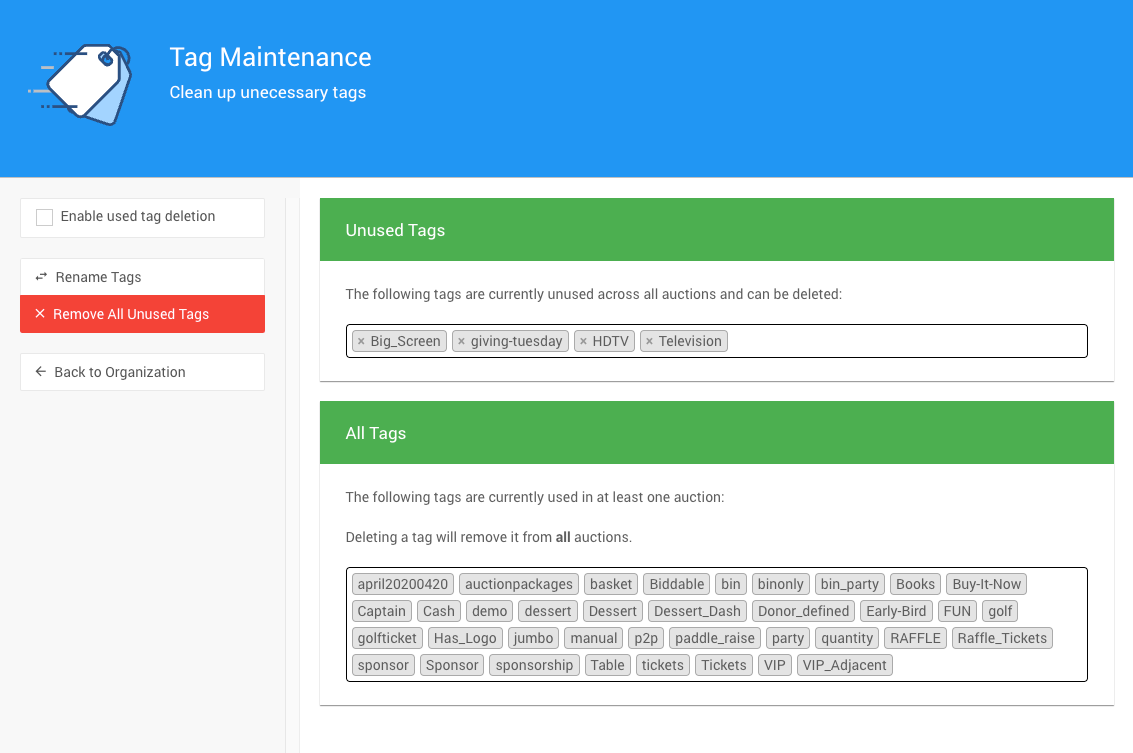
Understanding the Dashboard
The Tag Maintenance dashboard has two main sections:
Unused Tags
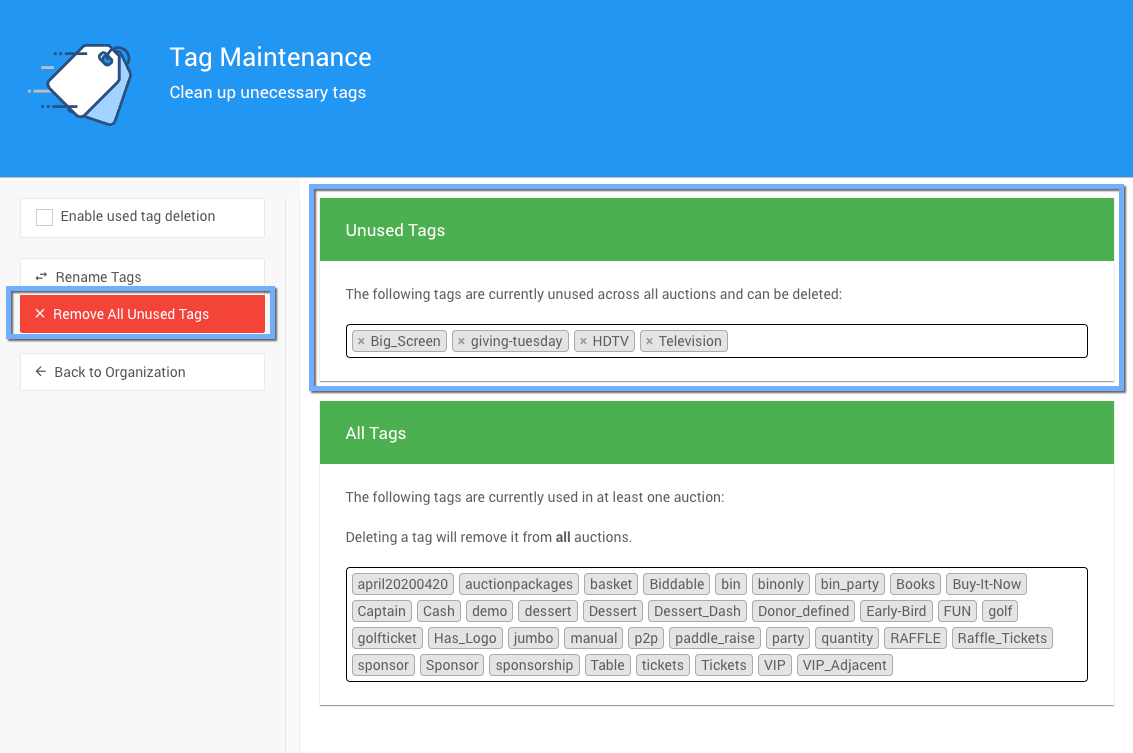
These are tags that exist in your organization but aren't currently used in any event. They're safe to delete without affecting any data.
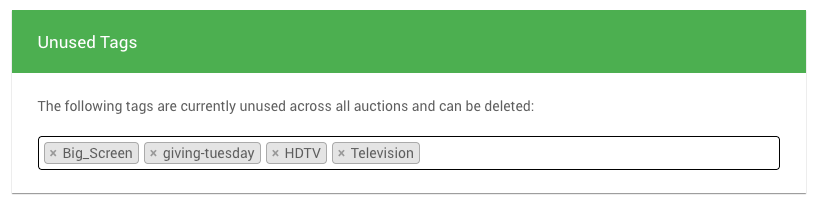
To remove a single unused tag: Click the X next to the tag name.
To remove all unused tags at once: Click the Remove All Unused Tags button in the Actions sidebar (see below for details).
All Tags
This section shows every tag that's currently used in at least one event across your organization.
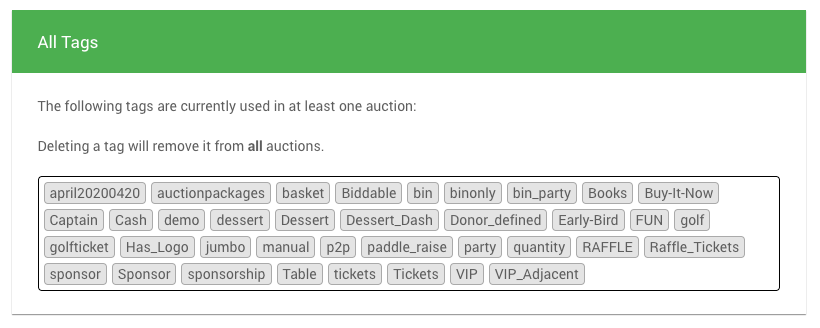
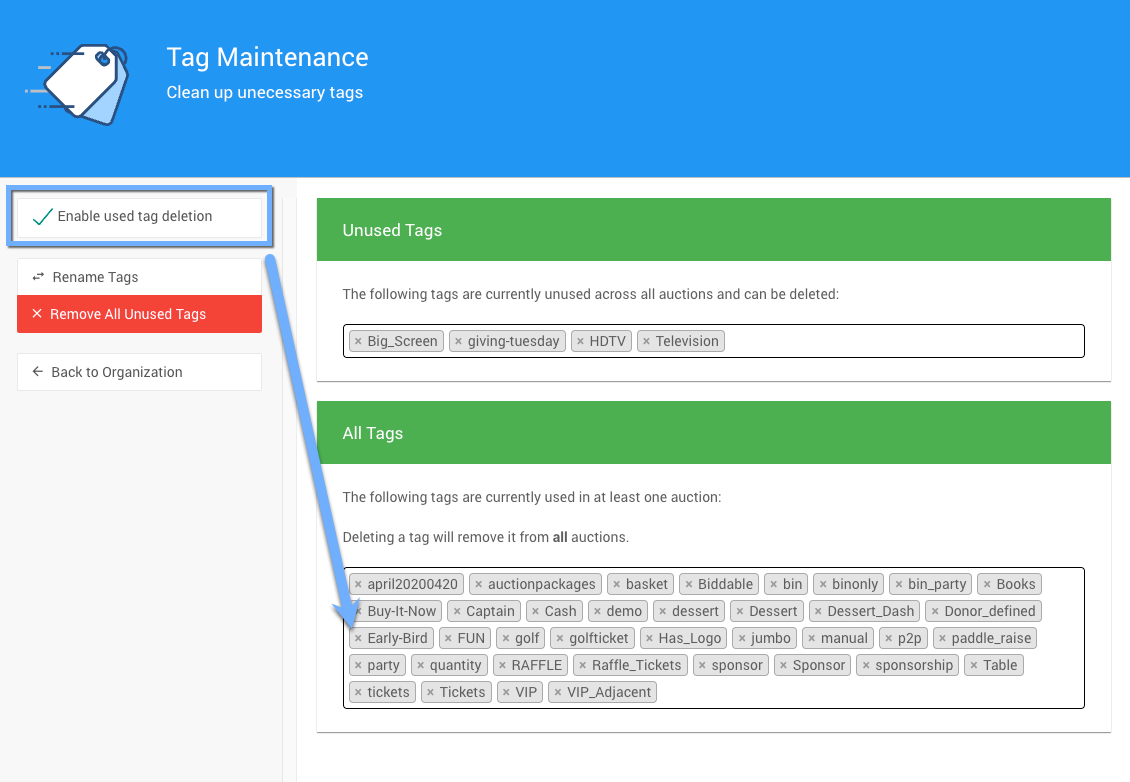
These tags cannot be deleted by default (since they're in use), but you can enable deletion by turning on the Enable used tag deletion option.
Managing Tags
Renaming or Merging Tags
Use the Rename Tags feature to change tag names or combine multiple tags into one.
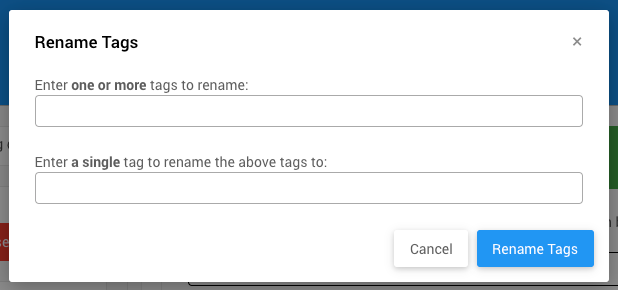
- Click Rename Tags in the Actions sidebar
- In the popup window:
- Old tag(s): Enter the tag(s) you want to rename (separate multiple tags with commas)
- New tag: Enter what you want to call them
- Click Rename
Merging Tags
This function is also perfect for merging tags! For example, if you have both "VIP" and "vip" tags, you can rename both to "VIP" to consolidate them into a single tag.
What happens: Every item, bidder, or donor that had the old tag(s) will now have the new tag instead. This applies across all events in your organization.
Deleting Used Tags
By default, you can't delete tags that are currently in use. To enable deletion:
- Check the Enable used tag deletion option in the sidebar
- An X will appear next to each tag in the "All Tags" section
- Click the X next to any tag you want to delete
Warning: Permanent Deletion
Deleting a tag removes it from ALL events and is permanent. There is no confirmation before the tag is deleted, and it cannot be undone.
What happens: The tag is immediately removed from every item, bidder, donor, and event where it was used. This cannot be reversed.
Removing All Unused Tags
To quickly clean up tags that aren't being used:
- Click Remove All Unused Tags in the Actions sidebar
- All tags shown in the "Unused Tags" section will be permanently deleted
Warning: No Confirmation
This action is permanent and happens immediately with no confirmation dialog. Make sure you want to delete all unused tags before clicking.
When to use this: Great for periodic cleanup after events end, or when you've renamed/merged tags and want to remove the old versions.
Best Practices
Review before deleting: Always check what a tag is being used for before deleting it, especially if it's in use across multiple events.
Use rename instead of delete: If you want to change a tag name, use the Rename Tags feature instead of deleting and recreating it. This preserves all the tag associations.
Merge similar tags: If you have variations of the same tag (like "VIP", "vip", and "V.I.P."), use the rename feature to consolidate them into one consistent tag.
Clean up regularly: Periodically remove unused tags to keep your tag list manageable and prevent confusion.
Be cautious with used tags: Only delete tags that are in use if you're absolutely sure they're no longer needed across all events.
Last reviewed: February 2026