
AUCTRIA ACADEMY
F.A.Q.
Getting Started
Popular Pages
Course
Auctria Dashboard
  • Getting Started
    • First Steps
    • Plan
    • Run
    • Close
    • Auctria Costs
    • Popular Pages
    • Glossary
    • Resources
  • Core Features
  • Event
    • Add A New Event
    • Change Events
    • Copy Event
    • Archive Event
    • Event Details
    • Event Permissions
    • Health Checks
    • Connectivity
    • Create An Online Store
    • Custom Questions
    • Event With Tickets
    • In-Person Events
    • Set Up A Donation Only Event
    • Set Up An In-Person Event
    • Set Up An Online Event
    • Terminology
  • Event Dashboards
    • Default Dashboard
    • Income Summary
    • Item Summary
    • Your Profile
      • Access My Profile
  • Credit Cards
    • Payment Processors
    • Credit Card Costs
    • Stripe
      • Connect Stripe Account
      • Change Test Mode
      • Export Stripe Data
      • Stripe Readiness Review
    • Authorize.Net
      • Configuration
      • Fraud Detection
      • Card Registration
      • Card Code Required
      • AVS Mismatch
      • Authorize.Net Readiness Review
    • Credit Card Settings
    • Credit Card Reports
    • Test & Live Modes
    • Participant Fee Coverage
    • Check Total Credit Card Fees
    • Registered Credit Cards
    • Remove All Registered Cards
    • Credit Card Full Refunds
    • Credit Card Partial Refunds
    • Readers And Swipers
      • Standalone Card Readers
    • Connect A Mobile Card Reader
    • Create Online Payment Link
    • Require ReCaptcha Validation
    • Make cc.fees Tax Deductible
  • Auctions
    • Online Auctions
      • Participants In Online Events
    • Paper Auctions
    • Live Auctions
    • Online Bidding
    • Kiosk Mode Bidding Setup
      • Slide Shows
      • Mobile Device Locking
    • Monitor Auction
  • Participants
    • How-To Guides
      • Open Participant Details
      • Copy Participants
      • Link Participants
      • Unlink Participants
      • Merge Participants
      • Correct Email Typos
      • Turn Off Participant Numbers
      • Duplicate Participant
      • Sharing Participant Numbers
    • Reference Materials
      • Participant Details
      • Add New Participant
      • Participant Numbering
      • Participant Maintenance
        • Duplicate Emails
        • Duplicate Names
        • Link Participants
        • Multiple Tickets
      • Registration/Checkout
      • Statements
        • Email Statements
        • Printed Statements
        • Text Statements
      • Choose Participants Filters
    • Catering
    • Linking vs Merging
    • Participant Numbers
  • Communication
    • Email
      • System Emails
        • System Emails Summary
        • System Email Options
      • Custom Emails
      • Send Custom Emails
      • Email Manager
      • Editing Emails
        • Email Element Visibility
        • Email Safe Fonts
      • Add Block
      • Add Table References
      • Use Conditional Content
      • Customize Email Header
      • Customize Email Footer
      • Email Edits For Online Auctions
      • Email Ticket Holders
      • Email Participants With A Balance
      • Email Text Link
      • Review Duplicate Emails
    • Text Messages
      • Text Settings
      • Text Options
      • Participants & Phone Numbers
      • Advanced Texting Profile
      • Set Up Advanced Texting
      • Send Custom Text
      • Text-To-Give
      • Transfer Text Number
      • A2P 10DLC
    • System Notifications
    • Mobile Notifications
    • Transactional vs Marketing Emails
    • Ticket Sales Communication
  • Items
    • Add New Items
      • Copy Items
      • Duplicate Items
      • Delete Item
      • Export Items
      • Batch Image Upload
      • Define A Gift Certificate
      • Add A Scheduled Event Item
      • Open Multiple Quantity Items
    • Item Details
      • Open Item Details
      • Edit Item Details
      • Open Item Bidding
      • Summary
        • Donation Items Detailed
        • For Sale Items Detailed
        • Live Bidding Type
        • Online Bidding Type
        • Paper Bidding Type
        • Partial Items Detailed
        • Raffle Prize Items Detailed
      • Images and Links
      • Contents
      • Activity
      • History
    • Item Types
      • Paper Bidding Type
      • Live Bidding Type
      • Online Bidding Type
      • Partial Items
      • For Sale Items
      • Donation Items
      • Raffle Prize Items
      • Buy It Now Only Items
    • Item Maintenance
      • Hide Items
      • Multiple Winners
        • Winning Multiples
      • Change Donation Item
      • Track Paddle Raise Donations
      • After Event Sales
      • Coupon Codes
      • Fund-A-Need
      • Online Pre-Bidding
      • Peer-to-Peer
      • Pricing Examples
      • Re-Open Unsold Items
      • Taxable Value
      • Auctria Voting
    • Item Numbering
      • Bulk Renumbering
      • Drag And Drop Ordering
      • Live Auction Ordering
      • Random Shuffle
      • Bulk Renumbering
      • Set Next Item Number
    • Basket And Packages
      • Build Baskets
      • Set Basket Descriptions
      • Basket Value
      • Combine For Sale Items
      • Combine Partial Lot Items
    • Reference Materials
      • Choose Items Filters
      • Choose Items Sort
      • Open/Close Bidding
      • Pricing Policy
      • Shipping
      • Sales Tax
        • Sales Tax Mode
  • Financials
    • Expenses
      • Add A New Expense
      • Edit Expenses
      • Add Expense Category
      • Add Category to Expense
    • Consignments
    • Reference Materials
  • Raffles
    • Creating Raffles
    • Running Raffles
    • How-To Guides
  • Tickets
    • Ticket Management
      • Add Or Edit Tickets
        • Add Early Bird Tickets
        • Add Multi-Day Tickets
      • Changing Tickets
      • Activate/Deactivate Tickets
      • Transfer Tickets
      • Repair/Reissue Tickets
      • Tables And Seating
        • Assign Seating
      • Meal Choices
      • E-Tickets
        • Preview E-Ticket
        • Ticket Styling
      • Ticket Claim
      • Ticket Statements
      • Ticket Details
      • Ticket Settings
    • Ticket Sales
      • Sell Tickets
      • Sell Free/Discount Tickets
      • Stop Selling Tickets
      • Managing Ticket Sales
      • Refund Tickets
    • How-To Guides
  • Sponsorships
    • Add & Sell Sponsorships
      • Sell Sponsorships
    • Displaying Sponsors
  • Reports
    • Report Configuration
      • Change Report Views
      • Selecting By Tags
      • Drop-Down Selectors
      • Choosing Columns
    • Bulk Editing/Mass Changes
      • Bulk Editing
      • Delete Multiple Records
      • Bulk Edit Tags
      • Change Sales Tax Categories
    • Reference Materials
      • Item Reports
      • Donor Reports
      • Participant Reports
      • Ticket And Sponsorships Reports
      • Financial Reports
      • Other Reports
      • Raffles Reports
  • Actions
  • Check-In
    • Check-In By Organizer
    • Check-In Settings
    • Self Check-In Request
    • Participant Access
  • Checkout
    • Checkout By Organizer
    • Batch Checkout
    • How-To Guides
      • Checkout And Payments
      • Delete Purchase With Payment
      • Add Shipping Costs Manually
      • Negative Payment Refund
      • Splitting Bids
      • Transfer Payments
    • Checkout Payment Options
    • Online Purchase Behavior
    • Record Payment
    • Transfer Payment
    • Delete Non-CC Payment
    • Give Event Credits
    • Handling Payments
    • Issuing Refunds
  • Bidding Dashboard
    • How-To Guides
      • Promote Or Demote Bids
      • Edit Bids
      • Remove In-Progress Bid
      • Remove Maximum Bid
    • Editing Transactions
    • Live Auction
    • Online Auction
    • Paper Auction
  • Donations Dashboard
    • Dessert Dash
    • Paddle Raise
    • Record Donation
  • Sales Dashboard
    • Add For Sale Item
    • Add New Sponsorship
    • Add New Ticket
  • Event Website
  • Online Experience
    • Event Website
      • Online Bidding
      • Buying Single Tickets
      • Buying Multiple Tickets
    • Participant Check In
    • My Account
      • Update Ticket Details
    • Placing Bids
      • Bid Extension For Bidders
      • Kiosk Mode Bidding
      • Multiple Winners
      • Text Bidding
    • Mobile Bidding
      • Bidder Mobile App
      • How Bidders Sign In
      • Sign Into A Different Event
    • Text Commands
    • Change Maximum Bid
    • Max Bidding Examples
    • Max Bidding Rules
    • Maximum Bidding
  • Website
    • How-To Guides
      • Create New Event Website
      • Set The Website Address
      • Configure Menu Entries
      • Fix Page Content
      • Get QR Code
      • Copy Website With Import/Export
      • Track Visitors
    • Customization How-Tos
      • Set Home Page
      • Website Page Layout
      • Hide Website Pages
      • Edit Columns
      • Add New Page
      • Add New Row
      • Add Section
      • Add A Donation Page
      • Add A Sponsor Page
      • Create Coming Soon Page
      • Save The Date Page
    • Element How-Tos
      • Move Elements
      • Configure Item Catalog Style
      • Change Catalog Button Colors
      • Configure Items Displayed
      • Item Catalog Custom Cards
      • Display Donation Items
      • Add Button
      • Clickable Images
      • Modify Bidder Registration Form
      • Customize Shopping Cart
      • Add Cash Donations
      • Track Bidder Donations
      • Add A Pop-Up Video
    • Reference Materials
      • Website Dashboard
      • Header Links
      • Add Behavior
      • Add Style
        • Background
        • Fonts
        • Height
        • Margin And Padding
        • Text Align
        • Border
        • Thermometer
        • Custom Style
      • Choose File
      • Choose Image
      • Color Picker
      • Import Website
      • Export Website
  • Videos
  • Editor
    • Opening The Editor
    • Website Locked
    • Website Editor Sidebar
    • Website Editor Mode Effects
    • Manage Website Pages
      • System Pages
      • Special Pages
    • Current Page Settings
    • Theme Settings
      • Theme
      • Add Theme Color
      • Add Custom Variable
      • Add Font
    • Site Settings
    • Page Properties
      • Edit Current Section
      • Current Row
    • Preview Website Pages
    • Common Element Actions
    • Website Element Visibility
      • Date And Time View
  • Content
    • Row Content
      • Donation Element
      • Donor Catalog
      • Footer
      • Header
      • Item Catalog
      • Item Details
      • Leaderboard
      • Donate An Item
      • Sponsors Catalog
      • Sponsors Row
    • Column Content
      • Button
      • Callout
      • Content Cards
      • Countdown
      • Divider
      • Document Preview
      • Heading
      • Hero Element
      • Image
      • Image Carousel
      • Item Image Carousel
      • Map
      • Parallax Image
      • Profile Bar
      • Profile Cards
      • Progress Tracker
      • Quote
      • Share Event
      • Text Element
      • Video
      • YouTube Live Chat
    • Headers And Footers
  • Templates
  • Advanced Styling
    • Styling By Target
    • Styling by Code
  • Mobile Apps
  • Auctria Mobile Apps
  • Auctria Admin App
    • Admin App Bids & Donations
    • Admin App Check-In
    • Admin App Checkout
    • Admin App Sales
    • Charging A Credit Card
    • Mobile Card Readers
    • Pairing A Phone
    • Registering Credit Cards
    • Scan QR Codes
  • More Features
  • Settings
  • Online Settings
    • Online Availability
    • Online Bidding Times
    • How-To Guides
      • Online Pay Later
      • Reopen Online Bidding
      • Set Limited Ticket Times
      • Closing Online Bidding
      • Pause An Online Event
      • Set Up Online Pre-Bidding
      • Tracking Online Donations
    • Online Visibility
    • Timezones
  • Organizations
    • Auctria License
    • Auctria Balance
    • Upgrade License
    • User Accounts
    • Adding Users
    • Edit Users
    • Removing Users
    • Replace User
    • Tag Maintenance
    • Filters
    • Change Contact Email
    • New Organization By Participant
    • Create Test Event
    • Standalone Card Readers
  • Categories
    • Item Categories
      • Add New Category
      • Grouping Items By Category
    • Expense Categories
    • Sales Tax Categories
    • Consignment Categories
      • Add Consignment Categories
    • Edit Categories
    • Ordering Categories
  • Item Donors
    • Add In-Kind Donation
    • Add Item Donor
    • Item Donors Dashboard
      • Item Donor Details
      • Donor Receipts
      • Donor Maintenance
    • Solicited Items
    • Solicited Items Settings
  • Printing
    • How-To Guides
      • Pre-Populate Bid Sheet Values
      • Print Quantity On Bid Sheets
      • Defining Bid Sheet Columns
      • Customize Bid Sheets
      • Generate Thank You Letters
      • Fix Blank Pages
      • Word Documents
      • Print Participant Paddles
      • Print Bid Sheets 2 Up
      • Print Catalog Booklet
      • List Terms and Conditions
    • Reference Materials
      • Bid Sheets
      • Event Catalog
      • Display Pages
      • Gift Certificates
      • Live Reporting Sheet
      • Stationery
    • Attach Stationery
    • Baskets & Forms
    • Bid Sheets Examples
    • Create Stationery
    • Word Templates
    • Labels
      • Item Labels
      • Donor Mailing Labels
    • Upload Stationery
  • Images
    • Adding And Modifying Images
      • Select a Default Image
      • Edit Images
      • Delete Images
    • Dimensions And Sizes
  • Shipping Examples
  • Advanced
  • Advanced Features
    • Advanced Tagging
      • Using Advanced Tagging
    • Adding Custom CSS
      • Site Custom CSS
      • Current Element Custom CSS
        • Checkout Form Stylings
        • Item Catalog Stylings
        • Item Details Stylings
        • Sponsor Catalog Stylings
        • Video Element Stylings
    • Advanced Mode
    • Custom Website Variables
    • Advanced How To Guides
      • Convert To Online Only
    • Item Catalog Template
    • Schema Reference
      • Auction
      • Bidder
      • Bid History
      • Credit Card Charge
      • Donation
      • Donor
      • Expense
      • Item
      • Item Category
      • Item Donors
      • Organization
      • Payment
      • ProxyBid
      • Raffle
      • RaffleTicket
      • Solicited Item
      • Ticket
      • Entity Image
    • Using Tags In Auctria
  • Import/Export
    • Map Fields for Import
    • Export Settings
    • LGL Export

How To Create A Test Event

< Next: >

Create a duplicate of your event for testing and practice without affecting your live event.

Need to practice, train volunteers, or test new features without affecting your live event? Auctria makes it easy to create a safe testing environment. The recommended approach is to use the Create Test Event feature, which duplicates your event for practice purposes.

  1. From the main Event Dashboard, click Events in the sidebar
  2. Under Actions, click Create Test Event

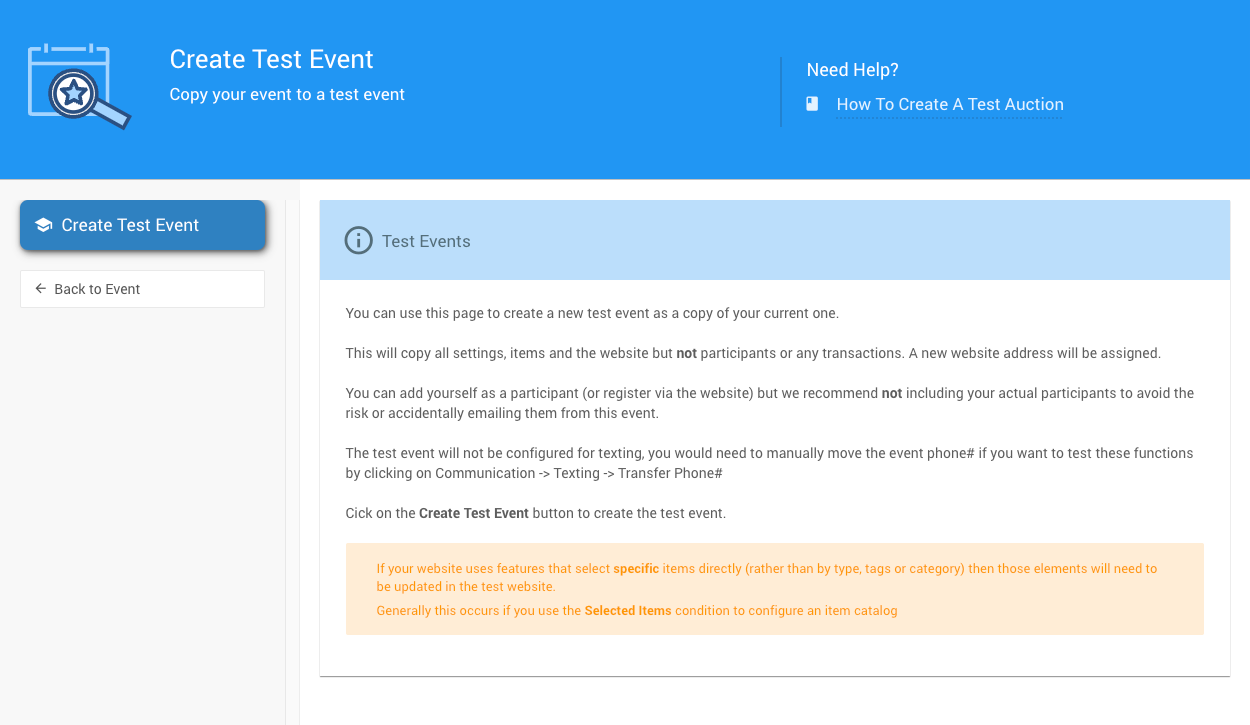
The Create Test Event page will open.
img

Click the button to create your test event. This will copy:

  • All event settings
  • All items
  • Your event website

What's NOT copied: Participants and transactions (to protect your real data).

Your test event includes built-in safeguards:

Test Website Address
Your website URL will have -TEST appended to it.

Red Warning Banner
A large red banner appears at the top of the test website as a reminder you're in test mode.

img

No Real Participants
Add yourself as a test participant, but don't include real participants to avoid accidentally emailing them.

No Text Messaging
Texting is disabled by default. To test texting features, manually transfer your phone number via Communication > Text Settings > Transfer Phone#. See Actions for details.

Update Online Bidding Times

Your test event copies the bidding times from your live event. Update these to test online bidding now. See Online Bidding Times for instructions.

If you've tested changes and want to make your test event the live event, use the Copy Event function.

Important Notes

  • The test banners won't copy over
  • Review all settings and options before going live
  • Verify online bidding times are correct for real bidding

If creating a test event doesn't fit your needs, here are other options:

Create a new event in your organization (if your license allows) or copy an existing event.

Give it an obvious name like --TEST EVENT ONLY-- so it's clear which event you're working in.

Which Event Opens First?

If you have multiple events, Auctria opens the "default" event based on the date in the Event Summary tab. It shows events from the last week first, or the next upcoming event.

Create a new organization for testing (click Organization > Create New Organization). It will have an Explorer license with enough functionality for testing.

Or, sign out and create a completely new account with a different email address. You can share these credentials with others for training.

Sign out and use Auctria's demo event at www.auctria.com/Demo.

Demo Event Data

Using the demo event automatically signs you out. The demo comes pre-populated with sample data so you can start testing immediately.

Copy Demo Data

You can copy the demo event's data into your own test event: Organization > Copy Demo Event. This creates a new event titled with the demo name and copy date, like EnviroCare Spring Fundraiser (copied 03-Feb-2026).

Advantage: These options aren't attached to your main account, reducing confusion about which event you're working in.

Test within your live event by creating a test item (Items > Add Item).

Set the Override online bidding start/end time so the item is open now. Practice bidding on it, then delete it when finished.

Test Like a Participant

Use a different browser or incognito tab with a different email address to register as a participant. This shows you exactly what participants will see.

Advantage: Work with your actual event data to see how everything functions while adding minimal test content.

After testing, you may need to remove test bids. See  Can I Delete Test Bids? for more details.

Learn about related topics:
  • Copy Event
    You can copy an event to create a new event and select what information will be brought into the new one.
  • How To Set Up An In-Person Event
    Creating an Auctria In-Person event.
  • How To Add A New Event
    Create a new event within your organization.

< Next: >

Last reviewed: February 2026
guide.auctria.com/redirect?id=CreateTestEvent
CreateTestEvent
/organizations/create_test_auction/
organizations
create_test_auction
How To Create A Test Event
Create a duplicate of your event for testing and practice without affecting your live event.
New Organization By Participant
Standalone Card Readers