
Adding Users
Adding users allows you to collaborate with team members, volunteers, and staff on your events. Each user gets their own login and can have customized permission levels.
Admin Permission Required
Only organization administrators can add or remove users. Make sure you keep at least one Admin account active—you cannot delete your own user account while logged in.
How to Add a User
Step 1: Navigate to the Add User Page
- Click Organizations in the sidebar
- Click Users in the organization dashboard
- Click the Add User button
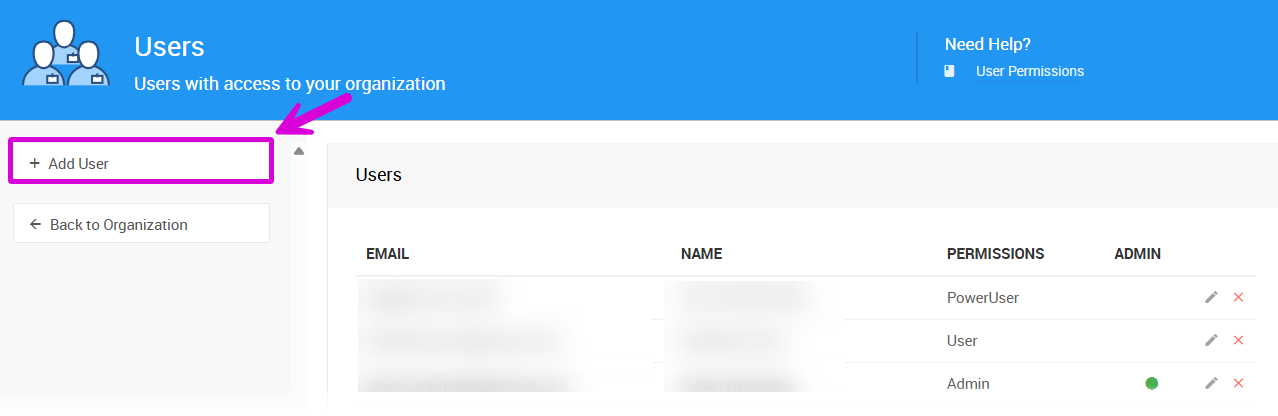
This opens the Add User page where you can set up the new user.
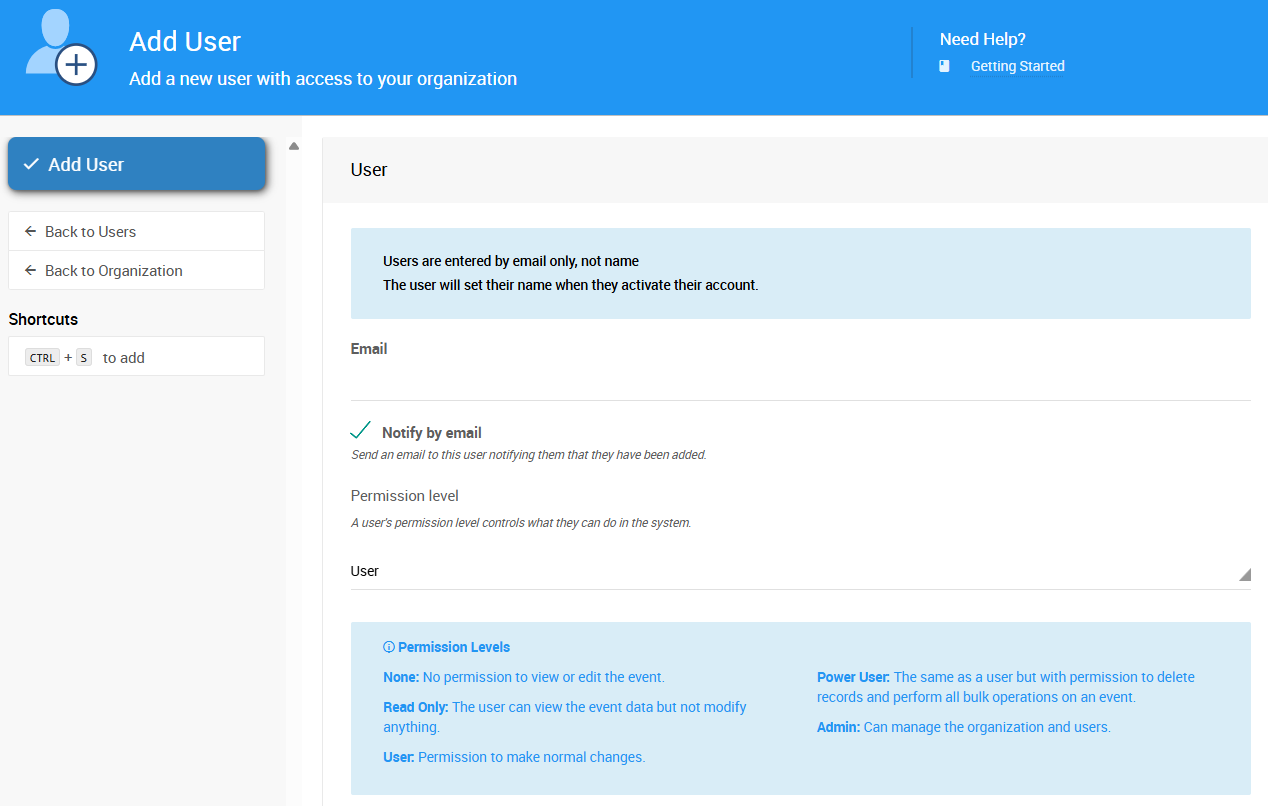
Step 2: Enter User Information
Email Address (Required)
Enter the user's email address. This is all you need to provide. Auctria will automatically send them an email with instructions to set up their name and password.
Permission Level (Default: User)
Choose the appropriate permission level for this user from the dropdown menu. If you're not sure which level they need, start with User permission. You can always change it later.
See Understanding User Permissions to learn about different permission levels.
Notify by Email
Keep this box checked (it's checked by default). This ensures the new user receives an email with setup instructions. If you uncheck this, they won't receive any notification and won't be able to access their account.
Step 3: Complete the Process
Click the Add User button (blue button on the left side) to create the account.
New User Emails
The new user will receive an email with a link to:
- Set their password
- Add their name
- Access the organization
What Happens Next?
Once you add a user:
- They receive an email with a secure link to set up their account
- The link expires after a period of time for security (if they miss it, you can resend the invitation)
- They set their password and complete their profile
- They can log in and access events based on their permission level
Tips for Adding Users
Start with lower permissions: It's easier to increase someone's permissions later than to fix problems caused by too much access.
Use meaningful email addresses: Make sure you're using the email address the person checks regularly—they'll need it to access Auctria and receive notifications.
Check the notification box: Always leave "Notify by email" checked unless you have a specific reason not to. Without this notification, the user won't know they have an account or how to access it.
Plan your permission structure: Think about what each person actually needs to do. Most volunteers and staff work well with User or Power User permissions.
Last reviewed: February 2026